Hello Folks,
In last post we have learnt basic concepts about XPath. In this post ,we will learn to write XPath expressions:
Using attribute name and value:
HTML elements might have attribute name and attribute values. Attributes give extra information about web element. Using those attributes in XPath, we can locate web element.
Syntax: //tagname[@attribute_name=’attribute_value’]
Attribute_name can be any attribute of HTML element or web element. You are not restricted to use only ID, name, or class name attribute.
Note: Attribute values are case sensitive.
When to use: You need to be careful while using attribute as they can have dynamic value as well. If you are sure that attribute value is not going to be changed, then use above syntax. Generally, attribute value which contains numeric digits are dynamic. Avoid such attribute values. You need to keen observer of HTML code of web element to catch it.
Example: HTML code of ‘Email or Phone’ text box of Facebook login page:
[code language=”html”]
[/code]
You can use all attributes to locate this element. Web element should be identified uniquely by locators for performing operation on desired web element only. XPath which returns only single matching web element (if we are using findElement()) is best to use.
XPath for above input web element:
//input[@type=’email’] : Returns desired web element only.
//input[@type=’email’] : Returns desired web element only.
//input[@name=’email’] : Returns desired web element only.
//input[@id=’email’] : Returns desired web element only.
//input[@data-testid=’royal_email’] : Returns desired web element only.
//input[@tabindex=’1′] : Returns desired web element only.
//input[@class=’inputtext’]: It returns 3 web elements including desired one. We can ignore this XPath expression as it is not uniquely locating.
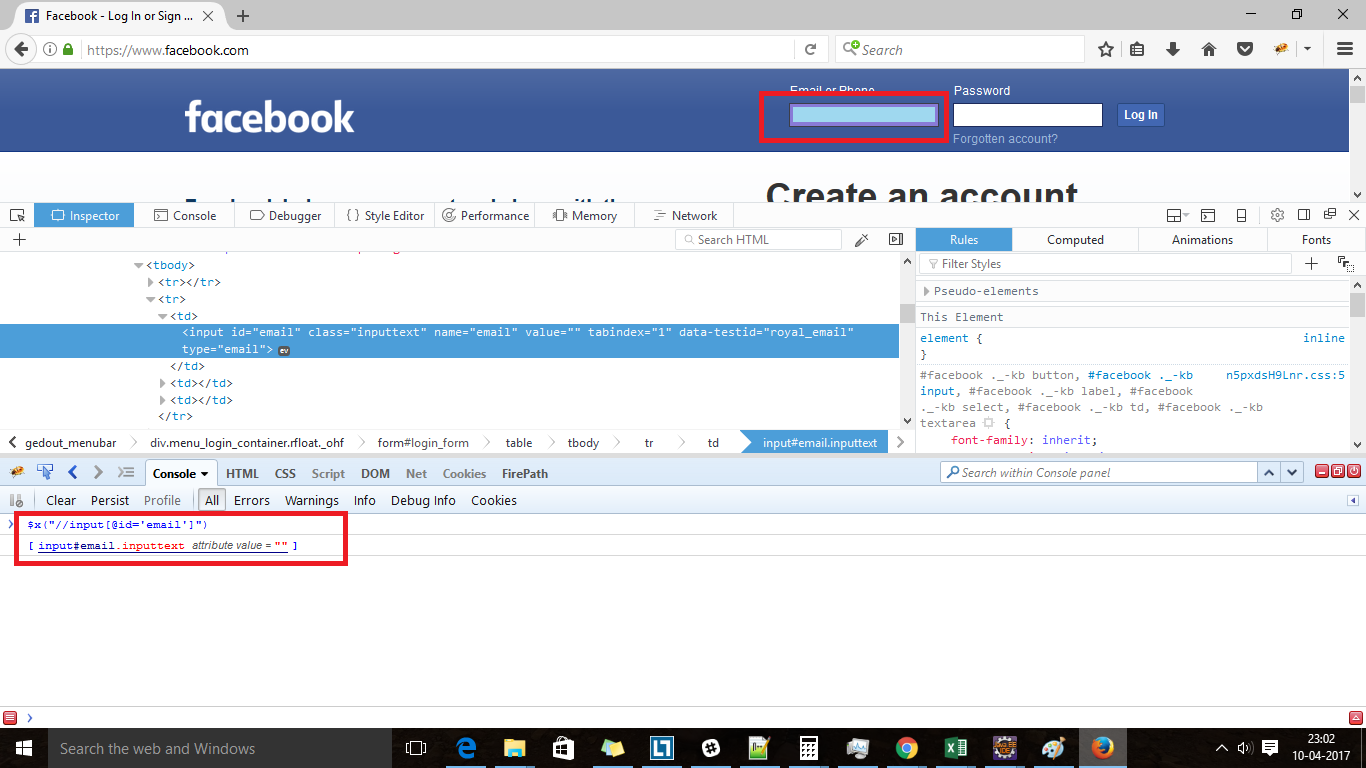
We can test above xpath expression result by typing in ‘console’ tab in browser as below:
$x(“//input[@type=’email’] ”) where x represents xpath expression.
Using contains method:
Above, I mentioned that attribute values might be dynamic as well. Dynamic means attribute value will be changed on page refresh or in new session. So, you cannot locate web element with same xpath expression every time. Dynamic web elements can be handled using conatins() method.
We need to observe if some part of attribute value never change. Like ‘Inbox’ in ‘Inbox(600)’ in Gmail. We will verify if attribute value contains ‘Input’ instead of passing complete attribute values. It is like contains() method in JAVA.
Syntax:
Xpath= //tagName[contains(@attribute_name, ‘Attribute_value’)]
Note: In above xpath, you are not comparing values that is the reason we do not put equals to method.
Example: //input[contains(@data-testid,’royal’)]
Using ‘and’ operator:
Web element may not be located uniquely using single attribute. In that case, you use combination of attributes as well. We can combine attribute using ‘and’ operator. ‘and’ works like logical in which all checks should give true for final true result.
Syntax:
//tagName[@attributeName=’attributevalue’ and @attributeName=’attributevalue’]
OR
//tagName[@attributeName=’attributevalue’][ @attributeName=’attributevalue’]
Example:
//input[@id=’email’ and @type=’email’]
//input[@id=’email’ and @type=’email’ and @name=’email’]
//input[@id=’email’][ @type=’email’]
Using ‘or’ operator:
You will notice for some web element ; attribute values will be dynamic but it will be within some fixed values. So, in this case we can use ‘or’ operator. For example, in a health clinic, a web application is used to book appointments of patients with doctors based on slot. To book appointment, it has plus button with slot times. You need to click on plus button to book slot. If slot is empty, name of web element will be free or booked in case of filled.
Syntax:
//tagName[@attributeName=’attributevalue’ or @attributeName=’attributevalue’]
OR
//tagName[@attributeName=’attributevalue’ | @attributeName=’attributevalue’]
Example:
//input[@id=’email’ or @type=’email’]
//input[@id=’email’ or @type=’email’ or @name=’email’]
//input[@id=’email’] | //input [ @type=’email’]
Even you can use combination of ‘and’ and ‘or’ but you need to use it properly as expression will be evaluated from left to right.
Example:
//input[@id=’email’ and @type=’email’ or @name=’email’]
Note: ‘AND’ and ‘OR’ will not work. Only small case letters.
Using last() method:
While traversing, you may find multiple same nodes/tags. But you know your desired node will be in last or last-2 etc. In that case, you can use last() method.
I will give you a real-time example. Suppose you need to enter data manually in a table on web page. It is possible that table will be filled with some rows already. In that case, you must need to go to last row to add data. In that case, last() method is very useful.
Syntax:
//tagName[last()]
Examples:
//input[last()] : It will give you last input web element.
//input[last()-2] : If last index is 10, last()-2 will give you 7th input web element.
Using starts-with method:
It can also be used to handle dynamic web elements. If you are sure that some attribute value will start with some specific characters only, you can use starts-with method to locate that web element.
Syntax:
//tagName[starts-with(@attributeName,’some text’)]
Example:
//input[starts-with(@data-testid,’royal’)]
Using wildcard character (*):
If you are not sure of type of web element whether it is text box or button etc. you can use wildcard character. You just need to use * instead of tagName. * represents any tag name. It is similar concept we use in SQL. You can use it to know all web elements which has some specific attribute value.
Syntax:
- //*[any xpath expression]
- //tagName[@*=’value’]
Example:
//*[@id=’email’]
//input[@*=’email’]
Using text() method:
It is very useful while writing xpath expression. You can use it with inner html text.
Syntax:
- //tagName[text()=’value’]
- //tagName[contains(text(),’value’)]
Example: HTML code of ‘Forgotten account?’ link on Facebook login page:
[code language=”html”]
Forgotten account?
[/code]
//a[text()=’Forgotten account?’]
//a[contains(text(),’Forgotten account?’)]
Note: We have restriction with linkText and partialLinkText locators that we can use them with only anchor node. Here, text() method can be used with any type of node.
Using position method:
Position refers order.
Note: when we write //input it will list all input nodes. When we write //input[2] it will not give you second input node from result of //input. It will give all input nodes which comes on 2nd position with respect to their parent node in DOM. Position should be positive and greater than zero.
Syntax:
//tagName[position()=number]
OR
//tagName[number]
Example:
//input[position()=2]
//input[2]
//input[position() >5]
Using attribute name:
If you want to if any web element has some attributes like id , name etc. or to know how many web elements have some attributes, we can use below expression.
Syntax:
//tagName[@AttributeName]
Example:
//a[@id]
Using single dot(.) and double dots(..)
It is very useful when you want to find a web element based on some criteria. Suppose you have a form where you need to type email id. To find email textbox, first you need to search email label and then you need to go back to input node to type.
Single dot selects current node and double dot selects parent of current node.
Example: //label[text()=’Email’]/../input
We can use this concept if we want to find a web element without any attributes based on another web element. Just we need to traverse to nearby element of desired web element and traverse down or up.
Using XPath axes:
Sometimes, you will find some web elements which have no attributes. It is difficult to locate them. We can locate them using other web elements. In this case, we can use XPath axes functions.
Major XPath axes we have as below:
- ancestor: Selects all ancestors of current node.
- descendent: Selects all descenders of current node.
- following: Selects everything in the document after the closing tag of the current node
- following-sibling: Selects all siblings after the current node
- preceding: Selects all nodes that appear before the current node in the document, except ancestors, attribute nodes and namespace nodes
- preceding-sibling: Selects all siblings before the current node
Syntax:
//tagName[any xpath expression]//axesName::tagName[index which is optional]
Example:
//input//following-sibling::div[1]
//input//ancestor::div[2]
Consider below xml for understand XPath axes:
[code language=”html”]