As a part of Postman Tutorial – End to End, in this post, we will learn “How to send GET request with query params in the Postman tool.“
When we are looking for a product in any e-commerce platform like Amazon then they provide us many filters and sorting options just to show more relevant results. That can be called as search parameters. At the front end (UI) whatever filter criteria we select those are generally sent as query parameters to the server via an API. We are going to learn the same how can we add query params at the API level if API has any.
In the last post, we learned to get a list of all users but what if we want to list users based on some conditions? For E.g. List all users whose name is “John” or gender is “female” or both. I am trying to put a filter on the result. You can relate this with “WHERE” conditions in SQL. This is called the query parameters of an API.
The syntax is as below:-
Query parameters will start at end of a base URL after a question mark symbol (?). A key-value pair will be as “key=value“. All key-value pairs will be separated with &.
BaseURL + ResourceName + “?” + key1 = value1 + “&” + key 2 = value 2 ……
Example:
https://gorest.co.in/public-api/users/?name=john&gender=female
The Key will be params name and the value will be param value. Eg. Name is a key and “John” is its value. If we hit the above request in Postman directly we will get users with name as John and gender is female. But again I will repeat your API should support query parameters i.e. developer of API must have added those then only you can use those fields as criteria.
These query params are optional and may be used multiple times in any order.
There are two ways to add query params in Postman:-
- Create a URL with query params as above syntax and directly paste in the address bar of the request template in postman.
- Use the “Params” tab of the Postman tool to add query params as key-value pairs. A final URI will be constructed automatically.
Using “Params” option of the Postman tool gives you a lot of flexibility in adding, editing, and deleting query parameters.
Make sure you have entered the API endpoint in URL section of a request template in Postman tool. Preferably HTTP method will be a GET but that is not mandatory.
- You will see a tab named “Params”. Click on that.
- You will see a table with three columns. Key, Value, and Description.
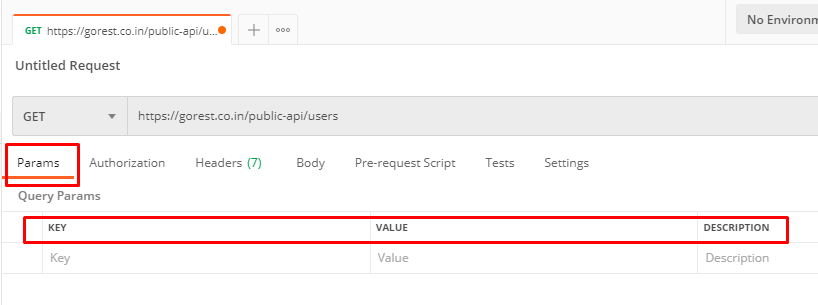
3. You need to add params name and its value. E.g. “Name” as key and “John” as its value. The description field is optional and it does not play any role in generating URL with query params. It is just for reference. As soon as you enter a param key, a new empty row will be added automatically.

You can notice as soon as you start adding params, URI in Postman address bar is updating as syntax described above.
You can see a checkbox prefix to params row. It means you have provided confirmation of use params in the GET request. You just click on it to uncheck. It will be unchecked and you can notice that param is removed from URI.
Once you add the desired query params you can view results are shown as per query params.

You can remove added param by hovering on a param row and then click on the cross sign as below.

You can do bulk edit as well. Click on the “Bulk Edit” option. Every pair will be in a new line and key and its value will be separated using a colon(:).


You can subscribe to my YouTube channel RetargetCommon to learn from video tutorials.
If you have any doubt, feel free to comment below.If you like my posts, please like, comment, share and subscribe.#ThanksForReading
#HappyLearning