Selenium automates a browser. There are multiple browsers supported by Selenium WebDriver. Major browsers are – Google Chrome, Mozilla Firefox, Microsoft Internet Explorer, Microsoft Edge, Opera, and Safari. In this post, we will learn to “Launch a Microsoft edge browser in Selenium WebDriver 3 and 4“.
Edge is a web browser developed by Microsoft. It was initially released for Windows 10 as a successor for Microsoft’s Internet Explorer (IE). Microsoft Edge was rebuilt as a Chromium-based browser in 2019. Chromium is a product by Google which they used to build Google Chrome and the same is used to building Microsoft Edge now. Even Opera browser is also based on Chromium.
Now Microsoft Edge is not just for Windows it is available for Mac, iOS, and Android. Initial developed Microsoft Edge is referred to Microsoft Edge Legacy now.
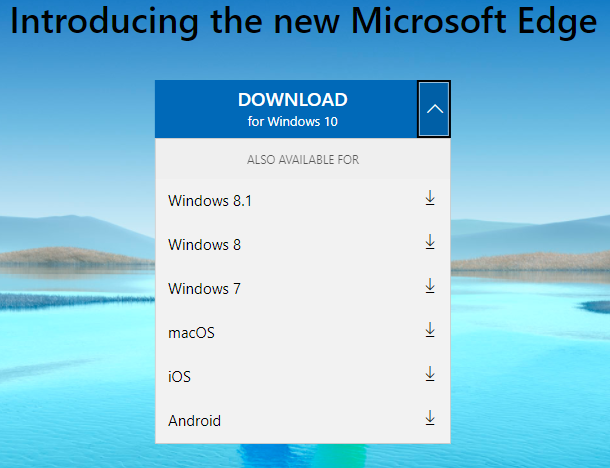
If you are using Windows 10 OS then most probably you will be using Microsoft Edge Legacy. To confirm you check the Edge logo and version. If you are using Mac or Windows 7, 8, and 8.1 then you can download from here. Downloading and installing is quite easy.
Since we will use Java binding of Selenium WebDriver to launch an Edge browser, please set up a Selenium Java project as discussed here.
Selenium WebDriver provides corresponding classes for browsers. For example:- For Chrome -> ChromeDriver, For Firefox -> FirefoxDriver, For Edge -> EdgeDriver. To launch any browser through Selenium WebDriver we just need to create an object of their corresponding class.
package BasicSeleniumConcepts;

import org.openqa.selenium.edge.EdgeDriver;

public class LaunchMicrosoftEdge {

        public static void main(String[] args) {
                EdgeDriver edgeDriver = new EdgeDriver();
                edgeDriver.get("https://www.google.com/");
        }

}

We were expecting that an edge browser should have launched but we got an exception IllegalStateException and states that “The path to the driver executable must be set by the webdriver.edge.driver system property“.
Selenium WebDriver can not communicate with a browser directly. We need an intimidatory executable agent between Selenium WebDriver and the actual browser. These intimidatory are provided by third parties. For edge, we need a msedgedriver as an interface between Selenium WebDriver and a real edge browser.
There is a critical part that for each version of the Edge browser, you may have different msedgedriver executable version. Many times you may face issues when Selenium will not be able to create a WebDriver session and maximum time reason is an incompatibility of Edge browser version and msedgedriver version.
I will advise you to download the latest Edge browser and msedgedriver always. If you are using an older version of Edge browser due to some restrictions always read release notes to know which msedgedriver version will support your current version of Edge browser.
I have below version of Edge browser installed on my system.
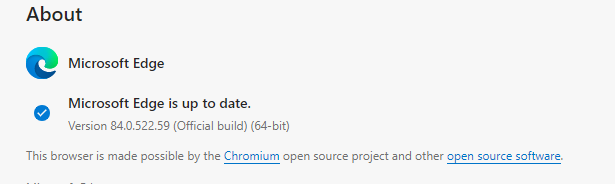
Let’s find a compatible version of msedgedriver for my installed version of edge. Remember this is just for reference. These versions will be changed with time. So just to follow the above process and download the correct version of msedgedriver.
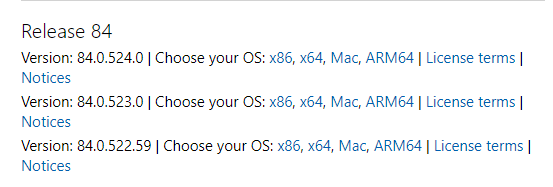
Just click on the link as per your OS. It will start downloading. It is a zipped file that you need to unzip. After unzip you will get a msedgedriver.exe file as exe is an extension of executable file on Windows. For Mac there will be no extension as they follow permission-based capability to identify an executable file.
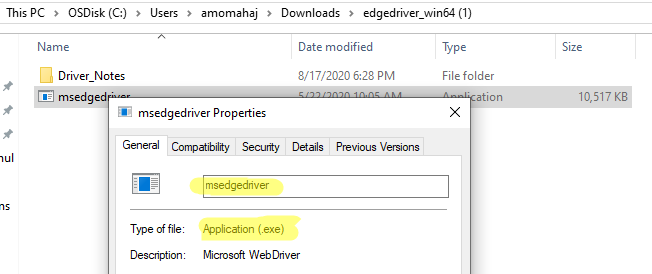
Note:- You can rename this file whatever you want. There are no restrictions that you can not change its name. Many beginners get confuse on this. You just need to use the changed name in your program.
Before launching an Edge browser you need to let WebDriver know explicitly the location of msedgedriver executable file. As of now, we will add the path of msedgedriver as a system property. There are some other ways as well which we will see later. Any System property is set as a key-value pair and to set path of msedgedriver, selenium WebDriver has a key as “webdriver.edge.driver”. Remember you can not change the key to some other name.
Remember we need to set a path of msedgedriver with the extension of it if available. It is needed for Windows but for Mac, you need to give it executable permission.
package BasicSeleniumConcepts;

import org.openqa.selenium.edge.EdgeDriver;

public class LaunchMicrosoftEdge {

        public static void main(String[] args) {

                // Set the path of edgeDriver with extension for windows
                System.setProperty("webdriver.edge.driver", "C:\\Users\\amomahaj\\Downloads\\edgedriver_win64 (1)\\msedgedriver.exe");
                EdgeDriver edgeDriver = new EdgeDriver();
                edgeDriver.get("https://www.google.com/");
        }

}
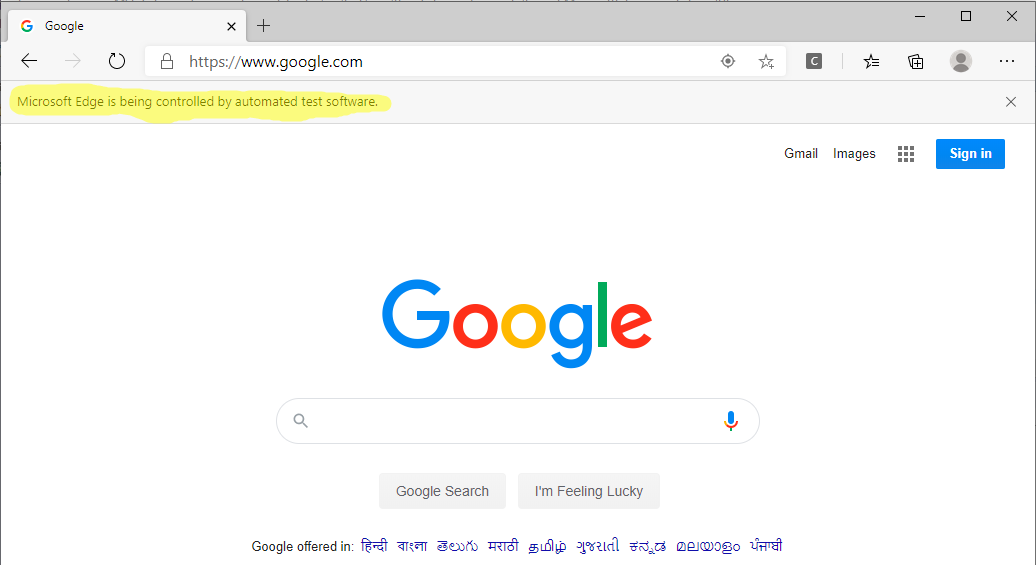
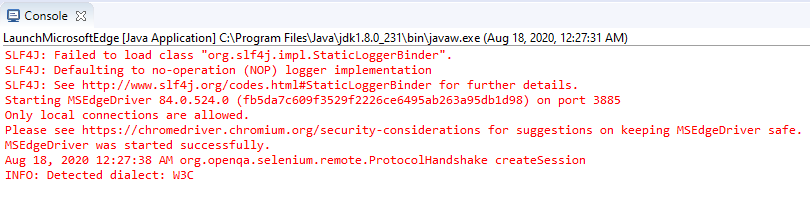
You can see logs are similar as we get for Chrome browser because Microsoft Edge is now chromium based. You can also see a similar message on the browser “Microsoft edge is being controlled by automated test software”.
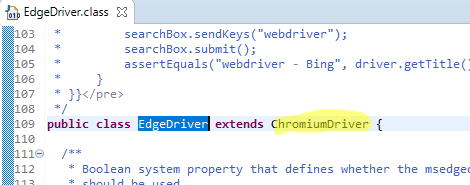
Since Microsoft Edge is a Chromium based browser, Class EdgeDriver extends Class ChromiumDriver like ChromeDriver class.
You can download/clone the above sample project from here.
If you have any doubt, feel free to comment below.If you like my posts, please like, comment, share and subscribe.#ThanksForReading
#HappyLearning