ElementClickInterceptedException – A very common exception in Selenium scripts and we try to solve this exception without knowing the cause of occurring it. People put wait or wait for element to be clickable or JavaScript which is very common.
Let’s replicate the same exception in a scenario :-
- Open Google.
- Type “Facebook” in search box.
- Click on Search button.
- Verify title of page.
Simple steps and below is code snippet:-
package BasicSeleniumConcepts;

import org.openqa.selenium.By;
import org.openqa.selenium.WebDriver;
import org.openqa.selenium.WebElement;
import org.openqa.selenium.chrome.ChromeDriver;
import org.openqa.selenium.support.ui.ExpectedConditions;
import org.testng.annotations.Test;

import io.github.bonigarcia.wdm.WebDriverManager;

public class ClickInterceptedException {

        @Test
        public void googleSearch() {
                WebDriverManager.chromedriver().setup();
                WebDriver driver = new ChromeDriver();
                driver.get("https://www.google.com");
                // Typing search keyword
                driver.findElement(By.name("q")).sendKeys("facebook");
                // Locating search button and click on it
                WebElement ele = driver.findElement(By.xpath("(//input[@name='btnK'])[2]"));
                ele.click();    Assert.assertTrue(ExpectedConditions.titleContains("facebook").apply(driver).booleanValue());
        }
}
org.openqa.selenium.ElementClickInterceptedException: element click intercepted: Element is not clickable at point (432, 368). Other element would receive the click: ...
It is not able to click on Search button. Let’s not understand the cause of occurring this and use our options.
package BasicSeleniumConcepts;

import org.openqa.selenium.By;
import org.openqa.selenium.WebDriver;
import org.openqa.selenium.WebElement;
import org.openqa.selenium.chrome.ChromeDriver;
import org.openqa.selenium.support.ui.ExpectedConditions;
import org.testng.annotations.Test;

import io.github.bonigarcia.wdm.WebDriverManager;

public class ClickInterceptedException {

        @Test
        public void googleSearch() throws InterruptedException {
                WebDriverManager.chromedriver().setup();
                WebDriver driver = new ChromeDriver();
                driver.get("https://www.google.com");
                // Typing search keyword
                driver.findElement(By.name("q")).sendKeys("facebook");
                Thread.sleep(10000);
                // Locating search button and click on it
                WebElement ele = driver.findElement(By.xpath("(//input[@name='btnK'])[2]"));
                ele.click();
Assert.assertTrue(ExpectedConditions.titleContains("facebook").apply(driver).booleanValue());
        }
}
Output is same again.
package BasicSeleniumConcepts;

import java.time.Duration;

import org.openqa.selenium.By;
import org.openqa.selenium.WebDriver;
import org.openqa.selenium.WebElement;
import org.openqa.selenium.chrome.ChromeDriver;
import org.openqa.selenium.support.ui.ExpectedConditions;
import org.openqa.selenium.support.ui.WebDriverWait;
import org.testng.annotations.Test;

import io.github.bonigarcia.wdm.WebDriverManager;

public class ClickInterceptedException {

        @Test
        public void googleSearch() {
                WebDriverManager.chromedriver().setup();
                WebDriver driver = new ChromeDriver();
                driver.get("https://www.google.com");
                // Typing search keyword
                driver.findElement(By.name("q")).sendKeys("facebook");
                // Locating search button and click on it
                WebDriverWait wait = new WebDriverWait(driver, Duration.ofSeconds(30));
                WebElement ele = driver.findElement(By.xpath("(//input[@name='btnK'])[2]"));
                wait.until(ExpectedConditions.elementToBeClickable(ele));
                ele.click();
 Assert.assertTrue(ExpectedConditions.titleContains("facebook").apply(driver).booleanValue());
        }
}
Output is same again.
package BasicSeleniumConcepts;

import org.openqa.selenium.By;
import org.openqa.selenium.JavascriptExecutor;
import org.openqa.selenium.WebDriver;
import org.openqa.selenium.WebElement;
import org.openqa.selenium.chrome.ChromeDriver;
import org.openqa.selenium.support.ui.ExpectedConditions;
import org.testng.Assert;
import org.testng.annotations.Test;

import io.github.bonigarcia.wdm.WebDriverManager;

public class ClickInterceptedException {

        @Test
        public void googleSearch() {
                WebDriverManager.chromedriver().setup();
                WebDriver driver = new ChromeDriver();
                driver.get("https://www.google.com");
                // Typing search keyword
                driver.findElement(By.name("q")).sendKeys("facebook");
                // Locating search button and click on it
                WebElement ele = driver.findElement(By.xpath("(//input[@name='btnK'])[2]"));
                JavascriptExecutor jse = (JavascriptExecutor)driver;
                jse.executeScript("arguments[0].click()", ele);
                Assert.assertTrue(ExpectedConditions.titleContains("facebook").apply(driver).booleanValue());
        }
}
It worked.
Using JavaScript click it worked but we bypassed the actual reason which may be a potential bug or a bad UX design. When we enter search keyword then google shows auto suggestions and HIDES THE SEARCH BUTTON. As per Official Selenium Doc – ElementClickInterceptedException Indicates that a click could not be properly executed because the target element was obscured in some way. This exception class extends ElementNotInteractableException class.
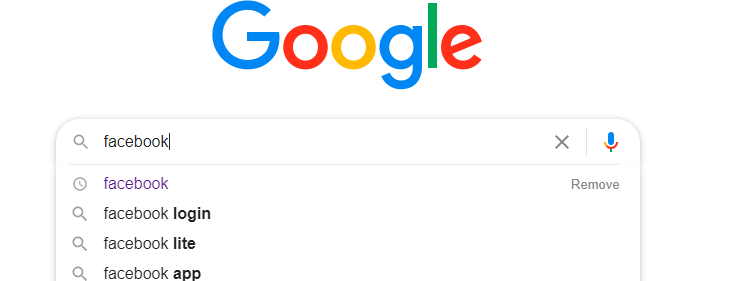
That is the reason Selenium Click was not able to click on element. Search button is overlapped by an auto suggestion option. Exception details also shows that which element will get click instead of search button. That is the reason neither wait worked nor wait for clickable. JavaScript works at DOM level directly so it was able to click.
It may be a bad design as it hides the search button. A person who is using google first time may not know that he can use Enter key or click on any suggestion from auto suggestion list to allow search. Keep Google aside and think about your application if this is the behavior.
There may be multiple reason behind this exception. Above is just one reason. You can write better handling code if you understand what is causing this instead of using JavaScript blindly and bypassing a potential bug.
Above scenario exception can be solved in below ways :-
- By sending Enter key to Search button instead of click.
- By clicking on a matching option from auto suggestions.
package BasicSeleniumConcepts;

import org.openqa.selenium.By;
import org.openqa.selenium.Keys;
import org.openqa.selenium.WebDriver;
import org.openqa.selenium.WebElement;
import org.openqa.selenium.chrome.ChromeDriver;
import org.openqa.selenium.support.ui.ExpectedConditions;
import org.testng.Assert;
import org.testng.annotations.Test;

import io.github.bonigarcia.wdm.WebDriverManager;

public class ClickInterceptedException {

        @Test
        public void googleSearch() {
                WebDriverManager.chromedriver().setup();
                WebDriver driver = new ChromeDriver();
                driver.get("https://www.google.com");
                // Typing search keyword
                driver.findElement(By.name("q")).sendKeys("facebook");
                // Locating search button and click on it
                WebElement ele = driver.findElement(By.xpath("(//input[@name='btnK'])[2]"));
                ele.sendKeys(Keys.ENTER);
                Assert.assertTrue(ExpectedConditions.titleContains("facebook").apply(driver).booleanValue());
        }
}
package BasicSeleniumConcepts;

import java.time.Duration;

import org.openqa.selenium.By;
import org.openqa.selenium.WebDriver;
import org.openqa.selenium.WebElement;
import org.openqa.selenium.chrome.ChromeDriver;
import org.openqa.selenium.support.ui.ExpectedConditions;
import org.openqa.selenium.support.ui.WebDriverWait;
import org.testng.Assert;
import org.testng.annotations.Test;

import io.github.bonigarcia.wdm.WebDriverManager;

public class ClickInterceptedException {

        @Test
        public void googleSearch() {
                WebDriverManager.chromedriver().setup();
                WebDriver driver = new ChromeDriver();
                driver.get("https://www.google.com");
                // Typing search keyword
                driver.findElement(By.name("q")).sendKeys("facebook");
                // Locating first suggestion button and click on it. Why first suggestion bcz whatever we type hat will come always at first
                WebDriverWait wait = new WebDriverWait(driver, Duration.ofSeconds(5));
                WebElement ele = wait.until(ExpectedConditions.presenceOfElementLocated(By.xpath("(//ul/li)[1]")));
                ele.click();
                Assert.assertTrue(ExpectedConditions.titleContains("facebook").apply(driver).booleanValue());
        }
}
You can download/clone above sample project from here.
If you have any doubt, feel free to comment below.If you like my posts, please like, comment, share and subscribe.#ThanksForReading
#HappyLearning