Front end Automation testing is not only about Navigating/Clicking/Typing here and there. It is more about validation so that it could catch real bugs.
If we use Selenium WebDriver for front end automation, it provides methods to do some validation like isEnabled(), isDisplayed() , isSelected() etc. We must need to understand the correct usage of methods before using it and if it is serving actual purpose.
I want to give an example here of how people use wrong method to validate something. Let’s consider below scenario:
- Navigate to “http://makeseleniumeasy.com“.
- Verify “Home” tab is active.
- Click on “API Testing”.
- Verify “Home” tab is not active but “API Testing” is active now.
Above scenario is similar to a real time scenario whose automation script I saw and got an idea of writing this post. You may be thinking its a very simple scenario. We just need to call isEnabled() method to get if a particular tab is active or inactive. Is it a correct validation? Actually NO.
“isEnaled()” method does not work in above way. Selenium javadoc defines it as below:
” Is the element currently enabled or not? This will generally return true for everything but disabled input elements. “. This method checks for “disable” attribute in web elements like input elements, buttons, textareas, Select etc. A link (An anchor tag ‘a’) can not have “disable” property. So calling isEnabled() method to check if a link in enabled or disabled is not correct.
Reference:
https://github.com/SeleniumHQ/selenium/issues/1377
https://github.com/SeleniumHQ/selenium/issues/1348
Now you can think of using isSelected() method. Will take do the correct validation of above scenario? Let’s see.
Selenium javadoc defines isSelected() method as below:
“Determine whether or not this element is selected or not. This operation only applies to input elements such as checkboxes, options in a select and radio buttons. For more information on which elements this method supports, refer to the specification. “
You should understand now that you can not use isEnabled() or isSelected() method to check if a link is active or inactive or selected.
How to do above validation then?
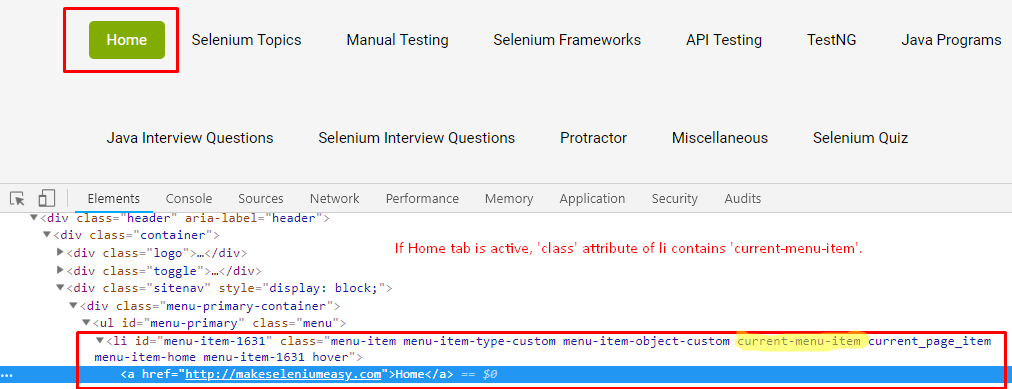
We need to observe the difference in DOM when tab is active or inactive or selected. For example:- See below images:-
when Home tab is selected, its class attribute contains a value named ‘current-menu-item’.
When I selected other tab and Home tab is no more selected, its class attribute does not contain ‘current-menu-item’.
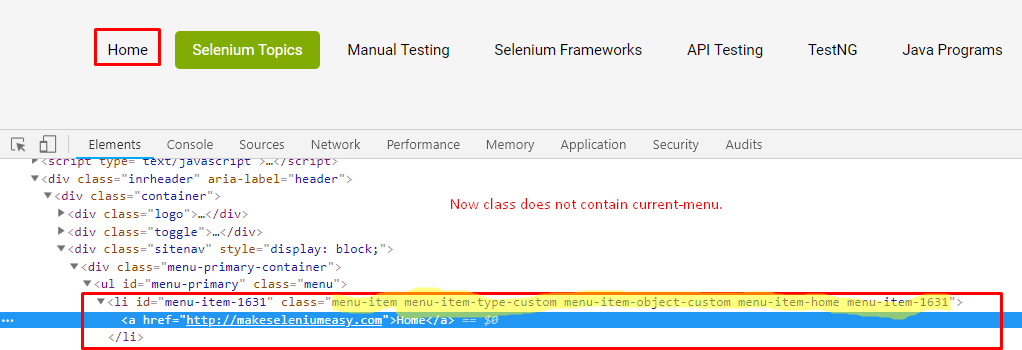
Now we can drive the logic here. We just need to get class attribute and verify if it contains ‘current-menu-item’ if it is Active. In case of inactive, it should not be available.
We will take another example of different site here:-


Selenium Code:-
package Problems;

import org.openqa.selenium.By;
import org.openqa.selenium.WebDriver;
import org.openqa.selenium.WebElement;
import org.openqa.selenium.chrome.ChromeDriver;

public class VerifyTabStatus {

        public static void main(String[] args) throws InterruptedException {

                System.setProperty("webdriver.chrome.driver", "./exefiles/chromedriver.exe");
                WebDriver driver = new ChromeDriver();
                driver.manage().window().maximize();
                driver.get("http://automationpractice.com/");

                // Locating Women tab
                WebElement tabWomen = driver.findElement(By.xpath("//a[@title='Women']/.."));

                // CLicking on Women tab
                tabWomen.click();

                // Relocating otherwise it will give StaleElementException
                tabWomen = driver.findElement(By.xpath("//a[@title='Women']/.."));

                // If we use isSelected() or isEnabled() method on it
                System.out.println("===========Verifying using isEnabled and isSelected method===========");
                System.out.println("Women Tab status as per isEnabled() method when it is selected: " + tabWomen.isEnabled());
                System.out.println("Women Tab status as per isSelected() method when it is selected:: " + tabWomen.isSelected());

                // Click on another tab Dresses
                driver.findElement(By.xpath("(//a[@title='Dresses']/..)[2]")).click();
                Thread.sleep(15000);

                // Relocating Home tab
                tabWomen = driver.findElement(By.xpath("//a[@title='Women']/.."));

                // If we use isSelected() or isEnabled() method on it again. You will see there is no change. So it is not correct way of validation.
                System.out.println("Home Tab status as per isEnabled() method when it is not selected: " + tabWomen.isEnabled());
                System.out.println("Home Tab status as per isSelected() method when it is not selected:: " + tabWomen.isSelected());

                // Above code does not validate what actually we want to do
                System.out.println("==============Verify using attributes=======================================");

                driver.get("http://automationpractice.com/");
                // Locating Women tab
                tabWomen = driver.findElement(By.xpath("//a[@title='Women']/.."));

                // CLicking on Women tab
                tabWomen.click();

                // Relocating otherwise it will give StaleElementException
                tabWomen = driver.findElement(By.xpath("//a[@title='Women']/.."));

                // Retrieving value of class attribute
                String classValue = tabWomen.getAttribute("class");
                if (classValue.contains("sfHoverForce"))
                        System.out.println("Women tab is currently selected.");

                // Click on another tab Dresses
                driver.findElement(By.xpath("(//a[@title='Dresses']/..)[2]")).click();
                Thread.sleep(15000);

                // Relocating Home tab
                tabWomen = driver.findElement(By.xpath("//a[@title='Women']/.."));

                // Retrieving value of class attribute
                String classValueAfter = tabWomen.getAttribute("class");
                if (!(classValueAfter.contains("sfHoverForce")))
                        System.out.println("Women tab is currently not selected.");

                driver.quit();

        }

}
===========Verifying using isEnabled and isSelected method===========
 Women Tab status as per isEnabled() method when it is selected: true
 Women Tab status as per isSelected() method when it is selected:: false
 Home Tab status as per isEnabled() method when it is not selected: true
 Home Tab status as per isSelected() method when it is not selected:: false
 ==========Verify using attributes=======================================
 Women tab is currently selected.
 Women tab is currently not selected.
Hope you learnt a new thing and will be careful when using these types of scenario. And also hope that you know where to use isEnabled() and isSelected() methods.
In case of any query, doubt kindly comment. If you like my posts, please share to reach maximum.
#ThanksForReading