Skip to content

Make Selenium Easy

And Keep It That Way

  • Home
  • Share
  • Toggle search form

Writing Conditional XPath In Selenium WebDriver

Posted on 02/19/2025 By admin

Hello Folks,

In this post, we will see how can we write conditional XPaths in selenium webdriver.

What is meant by Conditional XPaths?

If I say you to write xpath for the web element which has text or contains as “Selenium”, you can write is easily as below:

Has text= //*[text()=’Selenium’]

Contains text= //*[contains(text(),’Selenium’)]

But If I say you to write xpath for web element which does not contain or has text “Selenium” or locate all books whose price is greater than 300. You will find it difficult. We will going to learn how can we do that in locators itself.

We will take below html as example:

Webtable.html:

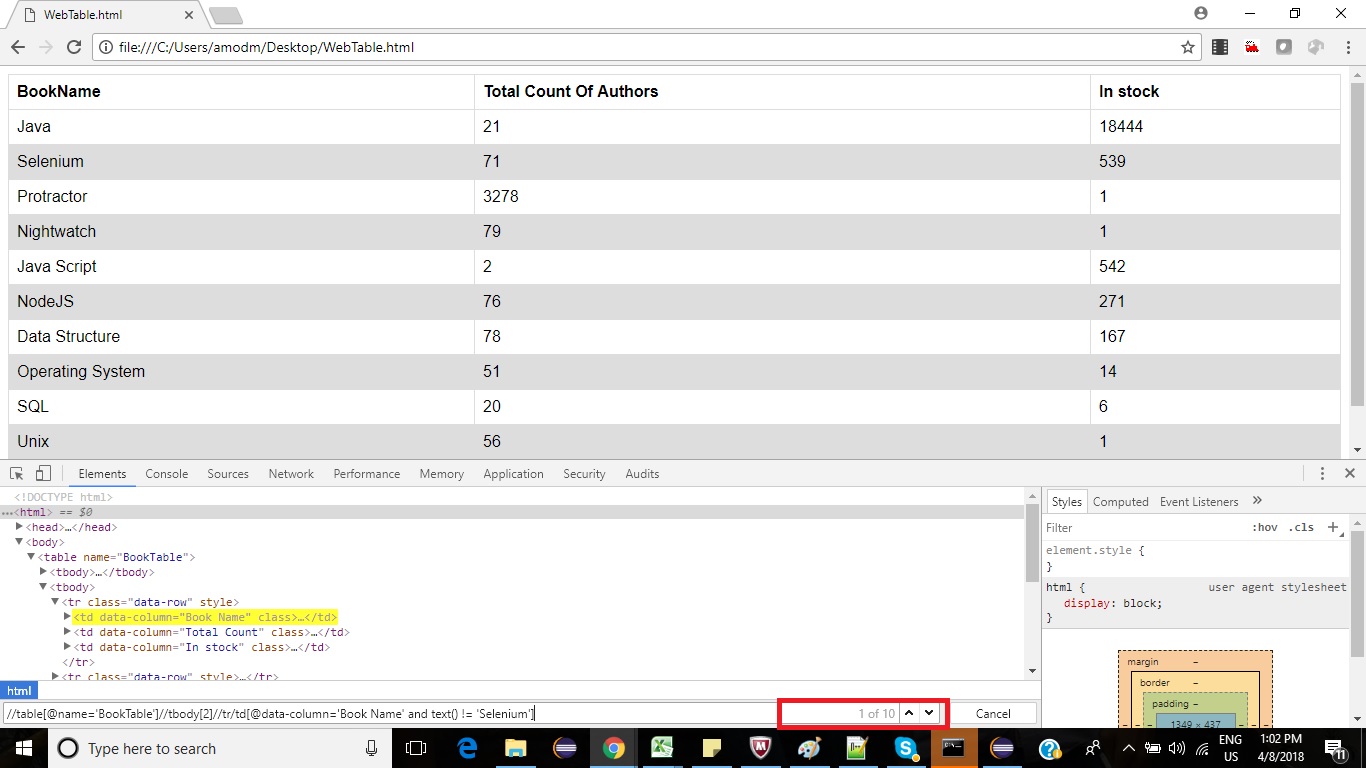
Scenario 1: Find all books except Selenium.

We always use equal to (=) operator to match exact values. We can also use “!=” operator to find if text does not match.

For above scenario , we can write xpath as below:

//table[@name=’BookTable’]//tbody[2]//tr/td[@data-column=’Book Name’ and text() != ‘Selenium’]
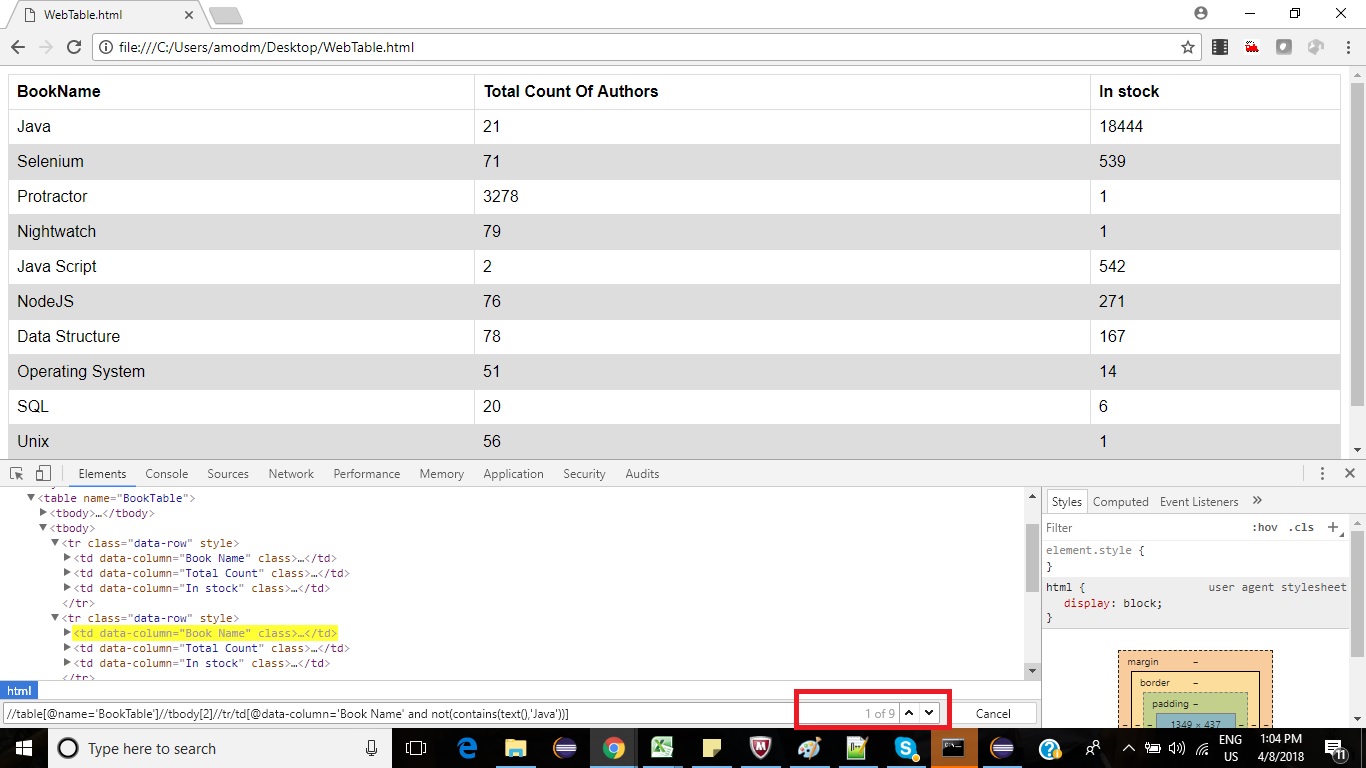
Scenario 2: Find all books which does not contains Java.

We use contains() method to check if text contains desired text. We can use opposite of that using not() method.

For above scenario , we can write xpath as below:

//table[@name=’BookTable’]//tbody[2]//tr/td[@data-column=’Book Name’ and not(contains(text(),’Java’))]
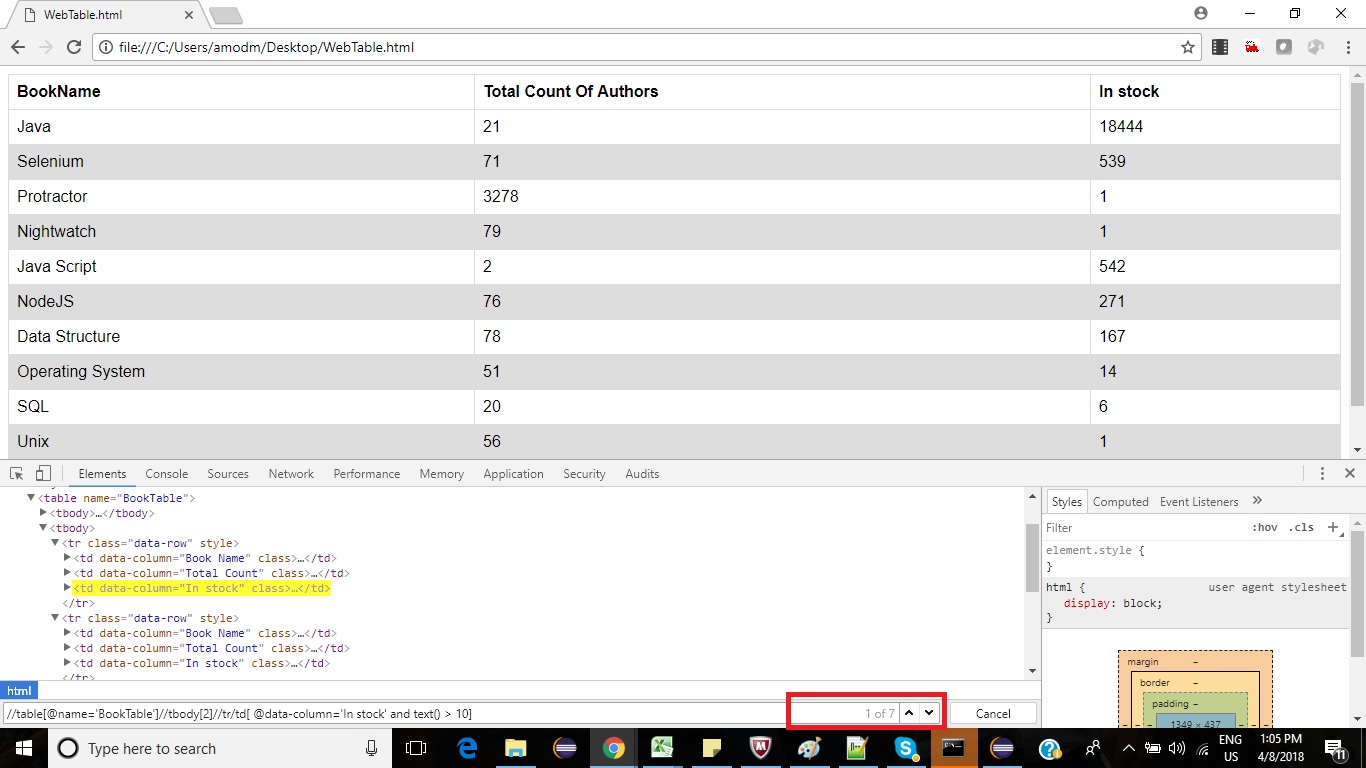
Scenario 3: Find all books whose in stock count is more than 10.

We can use > or >= operators to achieve this as below:

//table[@name=’BookTable’]//tbody[2]//tr/td[ @data-column=’In stock’ and text() > 10]
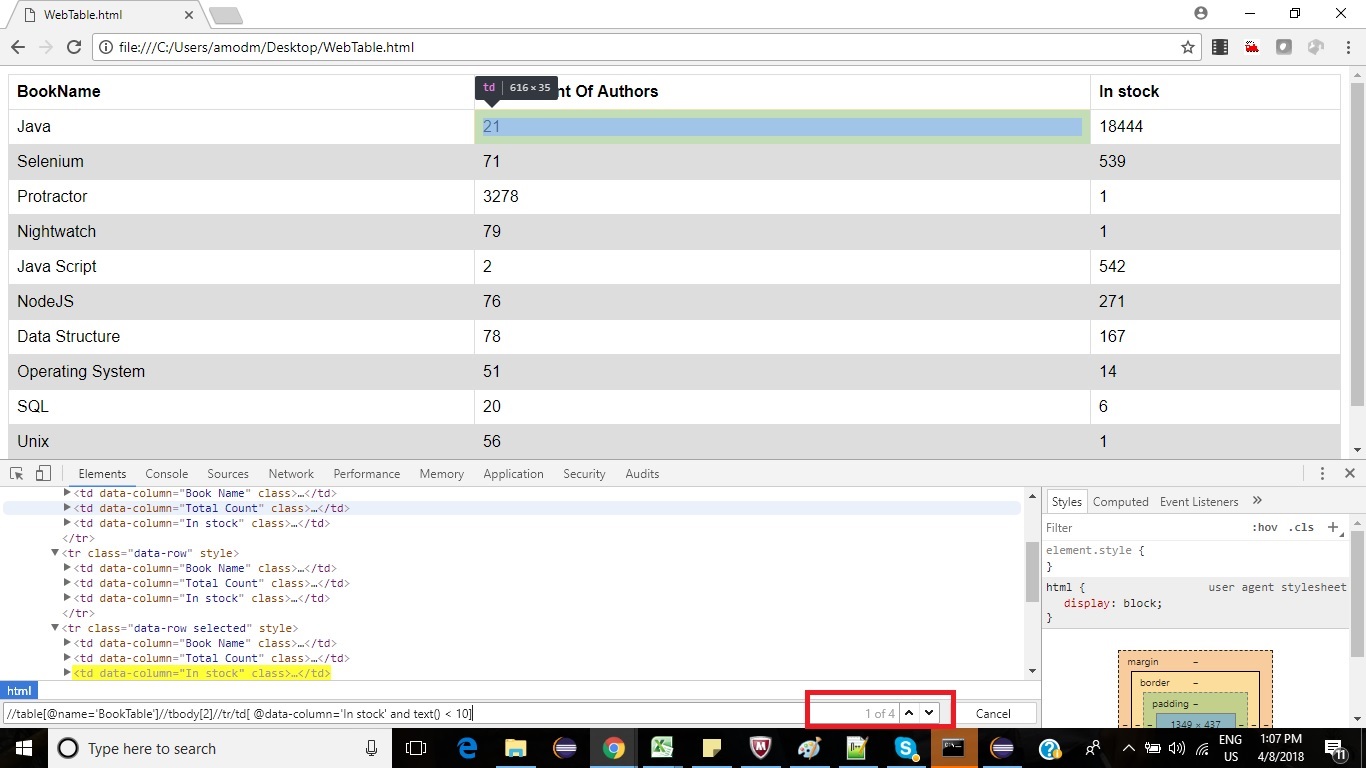
Scenario 4: Find all books whose in stock count is less than 10.

We can use < or = 1 and text() < 10]
I hope, you must have learnt something new from this post.

If you have any doubt, feel free to comment below. If you like my posts, please like, comment, share and subscribe. #ThanksForReading

#HappySelenium

Uncategorized

Post navigation

Previous Post: Protractor Vs Selenium
Next Post: what is jsonpath

Related Posts

selenium 4 features Uncategorized
How to handle StaleElementReferenceException Through Page Object Model – PageFactory – Make Selenium Easy Uncategorized
2018 – Make Selenium Easy Uncategorized
BeanShell – Make Selenium Easy Uncategorized
selenium testng Uncategorized
December 20, 2017 – Make Selenium Easy Uncategorized

Recent Posts

  • Getting Started with Selenium 4: What Is New and How to Upgrade from Selenium 3
  • Manual Testing
  • Baby Steps To Become Efficient Selenium-Java Automation Tester
  • Features of Selenium 4.0.0 Release – Java Binding
  • Part 1: Handling Drop-down Created Using SELECT Tag In Selenium

Recent Comments

No comments to show.

Archives

  • April 2026
  • April 2025
  • March 2025
  • February 2025
  • January 2025
  • December 2024
  • November 2024
  • October 2024
  • September 2024
  • August 2024
  • April 2024
  • March 2024
  • February 2024
  • December 2023
  • October 2023
  • August 2023
  • November 2022
  • September 2022
  • August 2022
  • July 2022
  • May 2022
  • March 2022
  • October 2021
  • April 2021
  • March 2021
  • January 2021
  • December 2020
  • October 2020
  • September 2020
  • August 2020
  • June 2020
  • May 2020
  • April 2020
  • March 2020
  • February 2020
  • January 2020
  • December 2019
  • November 2019
  • October 2019
  • September 2019
  • August 2019
  • May 2019
  • December 2018
  • November 2018
  • October 2018
  • September 2018
  • August 2018
  • July 2018
  • January 2018

Categories

  • Getting Started
  • Uncategorized

Copyright © 2026 Make Selenium Easy.

Powered by PressBook Masonry Dark