Hello Folks,
We have learnt different ways of writing XPath expressions and CSS Selectors. There are some tools which generate XPath and CSS automatically for use. But for better understanding of concepts, you must write these by your own. So, in this post we will learn :
- How to write and validate XPath Expressions and CSS Selectors in Chrome browser.
- How to write and validate XPath Expressions and CSS Selectors in Firefox browser.
How to write and validate XPath Expressions and CSS Selectors in Chrome browser:
The Chrome Developer Tools (DevTools for short), are a set of web authoring and debugging tools built into Google Chrome.
We can use this DevTools to validate XPath and CSS selectors which requires no third party extensions as we have Firebug, Firepath in Firefox and Xpath Selector in Chrome.
To access the DevTools, open a web page or web app in Google Chrome. Either:
- Select the Chrome menu
 at the top-right of your browser window, then select Tools > Developer Tools.
 - Right-click on any page element and select Inspect Element.
There are several useful shortcuts for opening the DevTools:
- Use Ctrl+Shift+I (or Cmd+Opt+I on Mac) to open the DevTools.
- Use Ctrl+Shift+J (or Cmd+Opt+J on Mac) to open the DevTools and bring focus to the Console.
- Use Ctrl+Shift+C (or Cmd+Shift+C on Mac) to open the DevTools in Inspect Element mode, or toggle Inspect Element mode if the DevTools are already open.
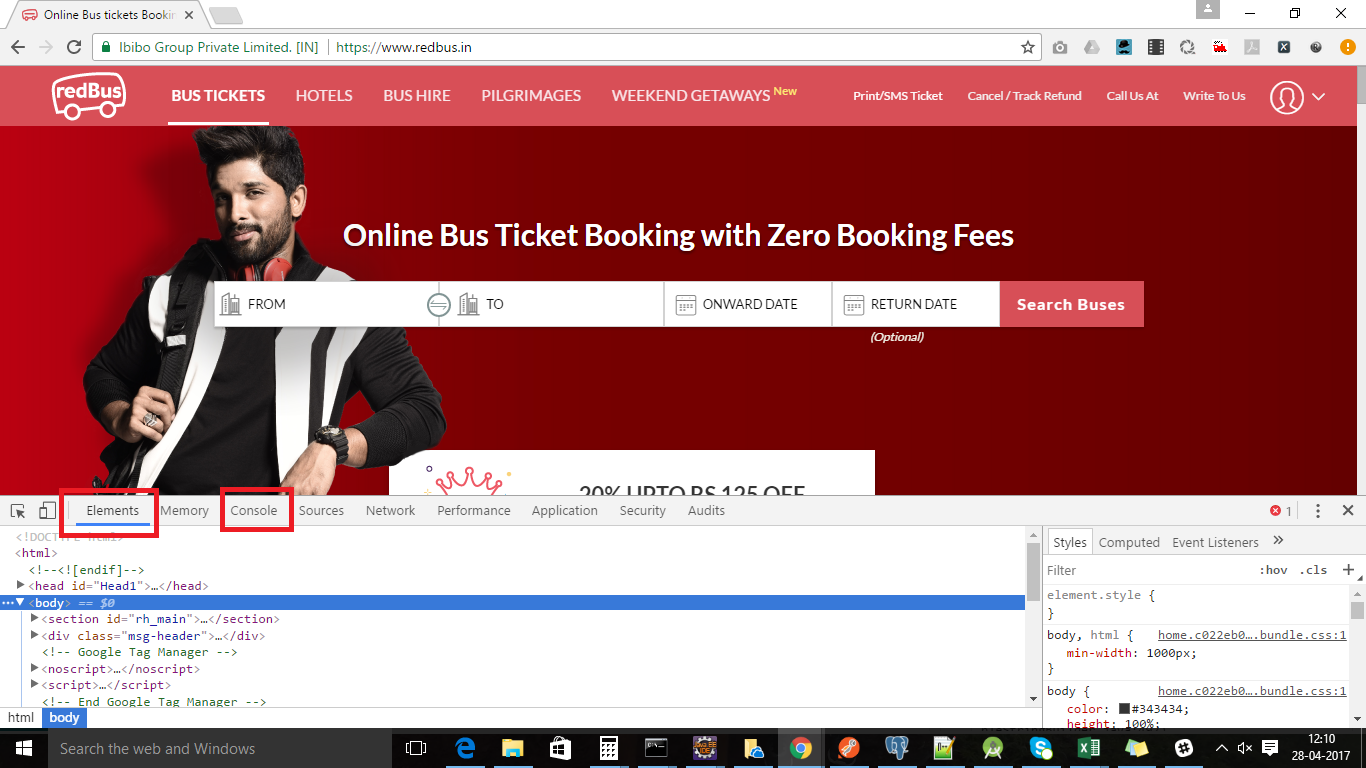
In DevTools, we have two panels which can be used to write/evaluate XPath/CSS.
-
The Elements panel lets you see everything in one DOM tree, and allows inspection and on-the-fly editing of DOM elements. You will often visit the Elements tabs when you need to identify the HTML snippet for some web element. We can use it to write and evaluate XPath/CSS.
Steps to write and validate XPath/CSS through element panel:
- Open DevTools. You know how to do that.
- Press ctrl+F. It will open DOM searching text box in panel as shown below.
- Type in XPath or CSS selectors to evaluate.
- If there are matched elements, they will be highlighted in DOM and it will give count of matching elements as well. We can go to any matched element using arrow keys. Hovering mouse of highlighted DOM, it will highlight web element in web page.
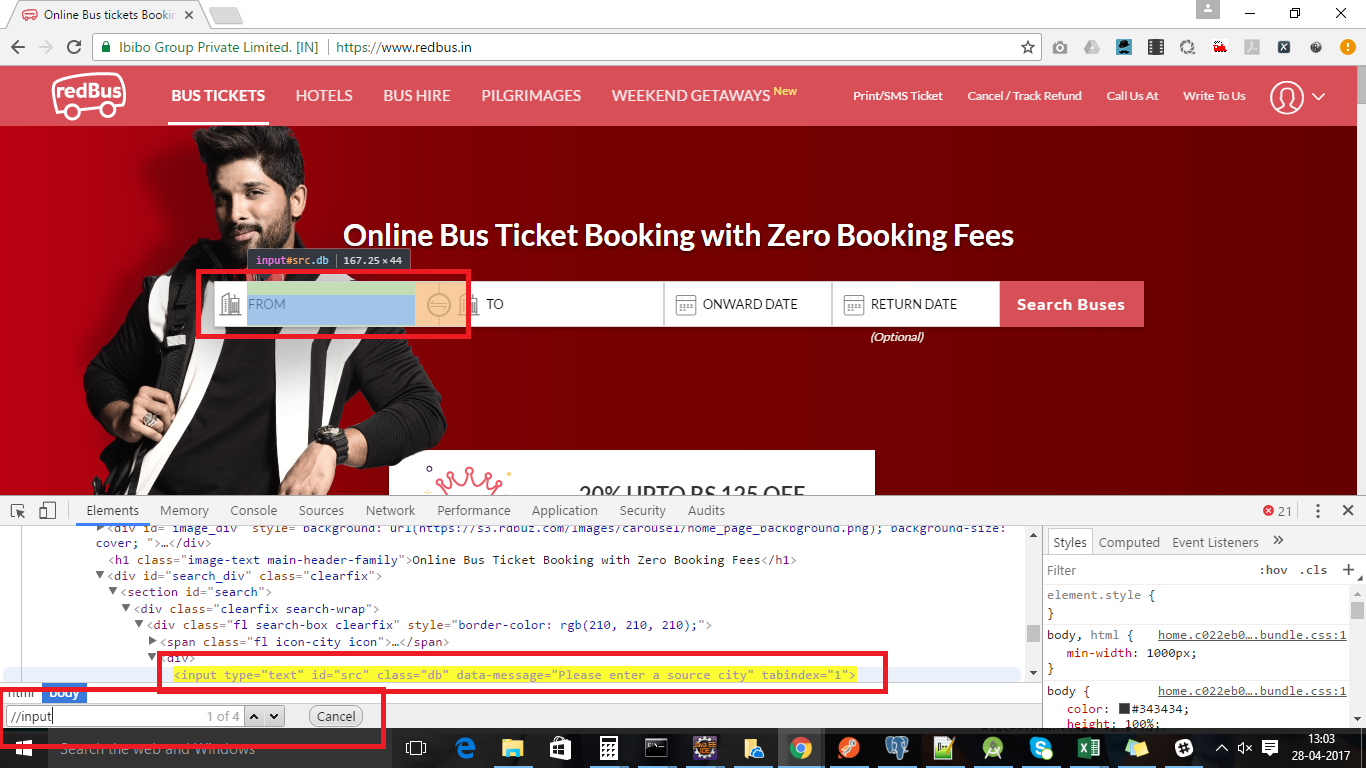
2. Console:
It is JavaScript console which is a shell prompt which can be used to interact with the document and DevTools.
Steps to write and validate XPath/CSS through console panel:
- Open DevTools. You know how to do that.
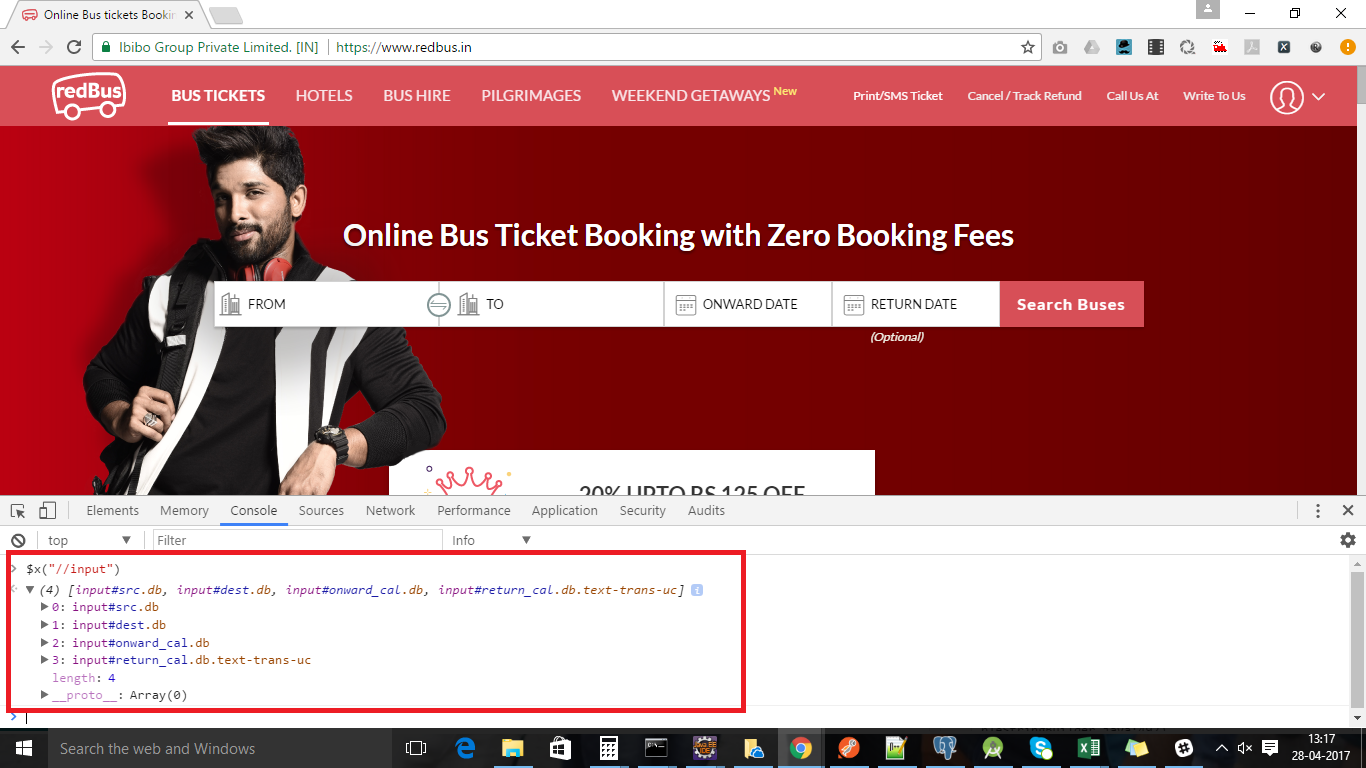
- If you want to write XPath write with in $x(“XPath Expressions”) and hit enter key.
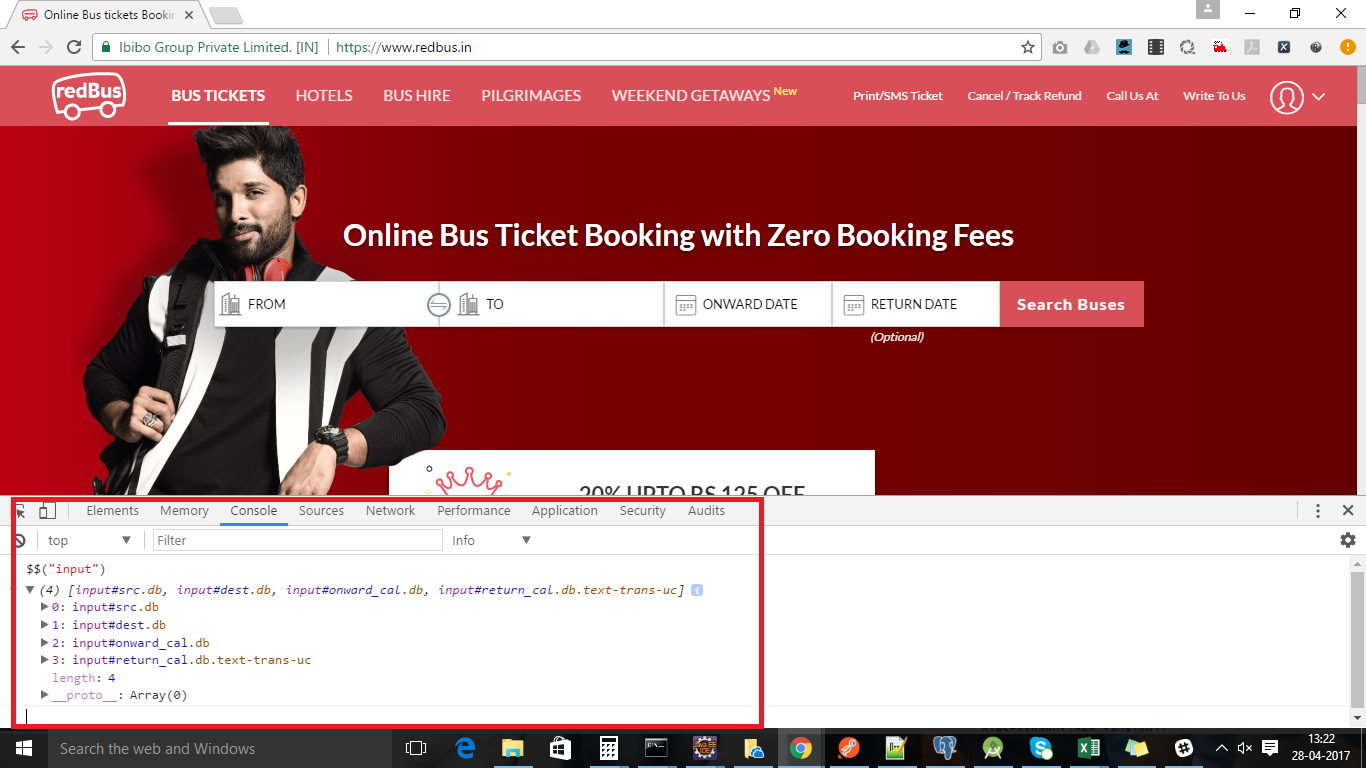
- If you want to write CSS write with in $$(“CSS Selector”) and hit enter key.
- It will return result in an array and you can view count of matching elements as well.
- Expand array and mouse hover on result, It will highlight web element on web page.
For XPath:
For CSS:
How to write and validate XPath Expressions and CSS Selectors in Firefox browser:
Firefox browser has also its in built developer tools but it is not advance as much as chrome DevTools. It is still under development. We can hope similar developer tools for Firefox as DevTools. As of now, we use use Firebug and Firepath.
These are extension of Firefox. Installation of usage of these tools I have explained in old posts.
We can use similar concept as Chrome browser for Firefox as well.
Step 1. Install Firebug and Firepath extension and restart your browser.
Step 2: Press F12. It will open dev tool.
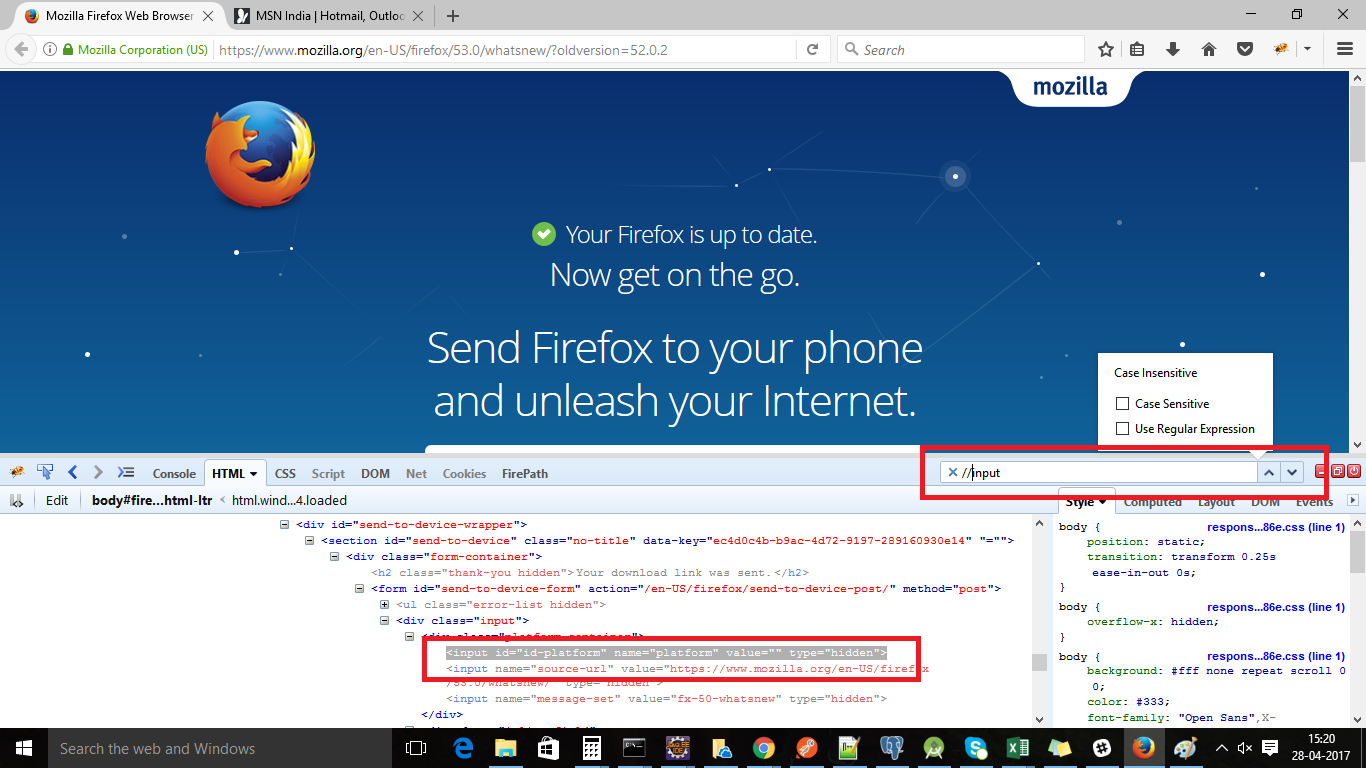
Step 3: Go to HTML panel and press ctrl +F. It will open DOM search box. Now type XPath or CSS expressions as we do for Chrome.
OR
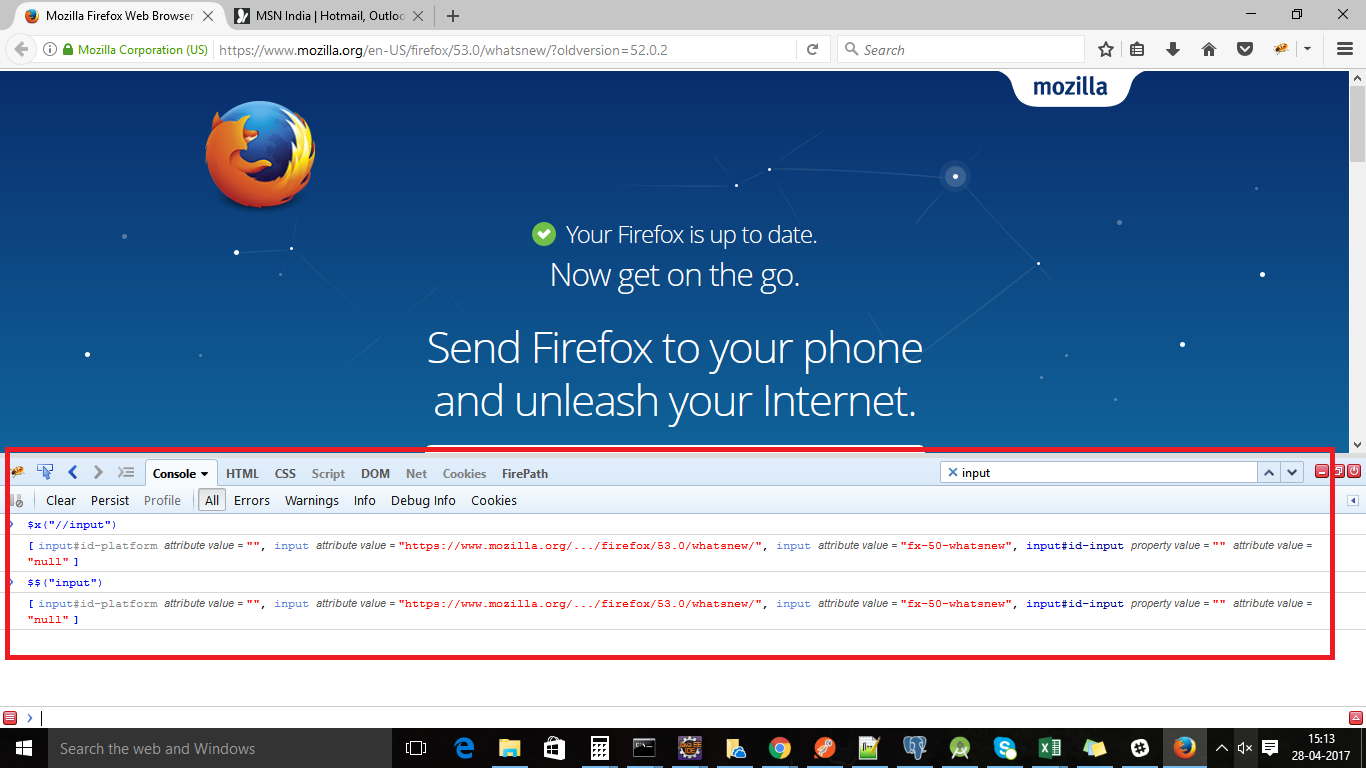
Step 4: Go to Console panel and use $x(” “) for XPath and $$(” “) for CSS.
OR
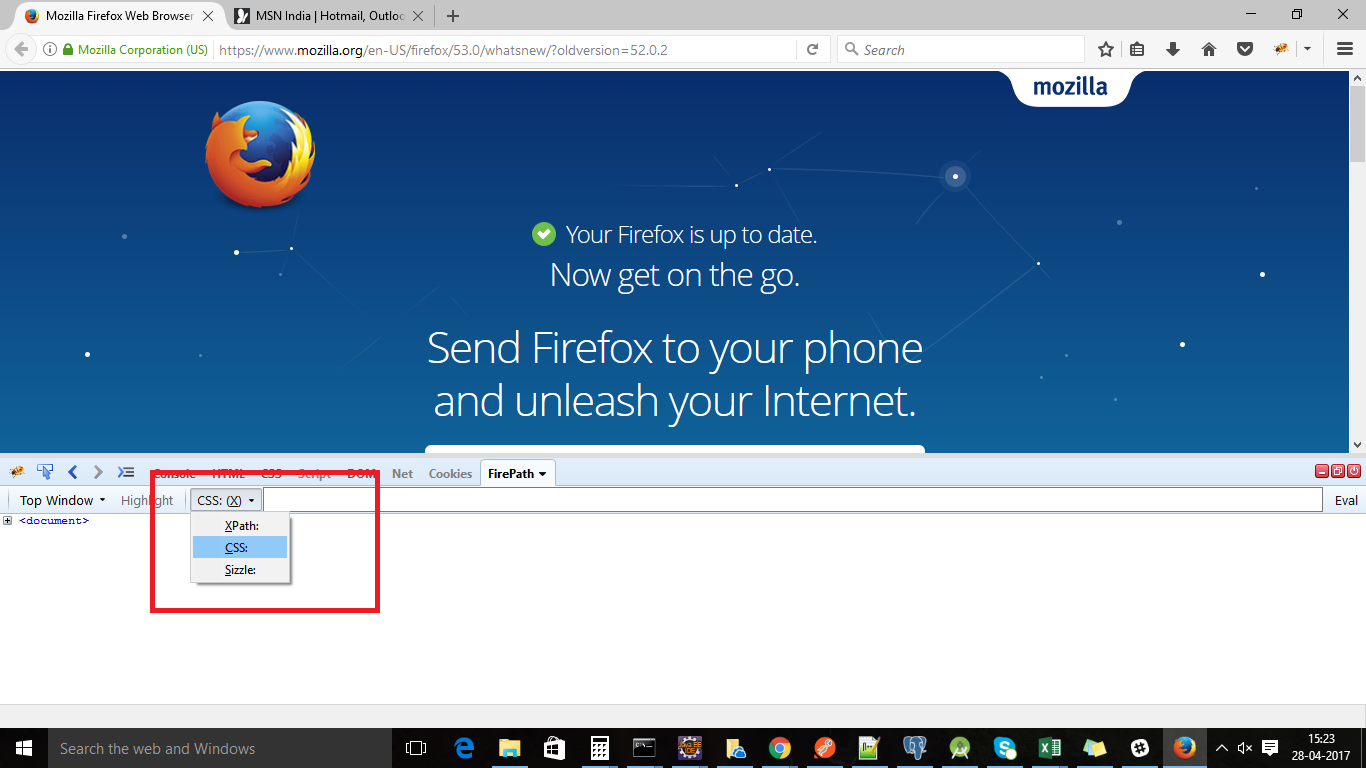
Step 5: Go to Firepath console and select XPath or CSS to write and validate expressions.
That’s it guys. I hope you must have learnt new things. If you any doubt, please comment and ask.
If you like my posts, please like, comment and share. Feedback and suggestions are
most welcomed.
Thank You!!
#HappyLearning