This question was recently asked in a Selenium group on Facebook.
Generally these types of question are asked frequently in Selenium. Select last N elements or only odd elements or only even elements or second last elements etc. Answer of all questions will be originated from same point.
In this post, I will explain selecting last five checkboxes using Selenium.
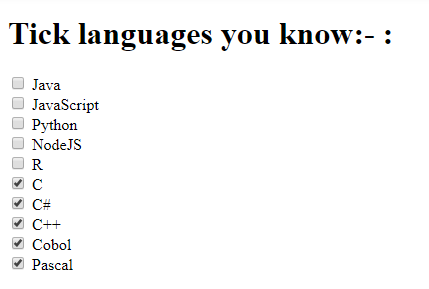
Consider below webpage:-
HTML Code:-
Requirement is to select last five checkboxes. There are two ways to achieve this:-
Approach 1:- Using iteration
Locate all element and start iterating with starting index as (total count-5) and end index as (count-1).
Approach 2: Using XPath methods named last() and position()
Write xpath to locate check boxes whose position is greater than 5th i.e. 6th, th, 8th, 9th and 10th. We can use position() and last() methods for this.
List lastFiveCheckboxes= driver.findElements(By.xpath(“//input[position() > last()-5]”));
last() will give last index i.e. 10 and position()>(10-5) will give checkboxes from 6th position.
Java Program:-
package ScenariosPractice; import java.util.List; import org.openqa.selenium.By;
import org.openqa.selenium.WebDriver;
import org.openqa.selenium.WebElement;
import org.openqa.selenium.chrome.ChromeDriver; public class CheckLastNCheckboxes { public static void main(String[] args) throws InterruptedException { System.setProperty("webdriver.chrome.driver", System.getProperty("user.dir") + "/chromedriver.exe"); WebDriver driver = new ChromeDriver(); driver.get("file:///C:/Users/amodm/Desktop/Checkboxes.html"); // Approach 1- Using for loop List allCheckboxes = driver.findElements(By.xpath("//input[@type='checkbox']")); System.out.println("Total checkboxes found: " + allCheckboxes.size()); // Starting index will be count of elements-5. i.e. if there are 10 check boxes, // you need to go (10-5)=5th index // to check 6th element. for (int i = (allCheckboxes.size() - 5); i < allCheckboxes.size(); i++) { allCheckboxes.get(i).click(); // Putting sleep to show execution Thread.sleep(2000); } // Approach 2 - Using advanced xpath driver.navigate().refresh(); // This xpath will locate all check boxes whose position is greater than 5 i.e. // 6th, 7th, 8th, 9th and 10th. List lastFiveCheckboxes = driver.findElements(By.xpath("//input[position() > last()-5]")); System.out.println("Total checkboxes found: " + lastFiveCheckboxes.size()); for (WebElement e : lastFiveCheckboxes) { e.click(); // Putting sleep to show execution Thread.sleep(2000); } } }
Output:-
Total checkboxes found: 10
Total checkboxes found: 5
If you like above post and feel it is worth to share to reach it to maximum people, please do.
#ThanksForReading