Hello Folks,
In this post we will going to see some topics which are important to do validation in API testing. These are frequently asked interview questions in API Testing as well.
- What is a header in API?
- How to retrieve a request header?
- How to retrieve a response header?
- How to get all headers as a list and iterate?
We have already seen about Headers in API.
“Headers” or “HTTP Headers” are key – value pairs which are used by Server and Client to exchange additional information about Request and Response. We can also say that headers are metadata of Request and Response.
As header contains important information about request and response, we may need to assert values of these headers in API testing. To assert values of headers, we need to get header first.
Postman Sandbox API (pm.*) provides ways to extract headers from request and response.
To get all headers of Request as a list :-
pm.request.headers : HeaderList
To get all headers of Response as a list :-
pm.response.headers : HeaderList
To get a specific header value by name:-
pm.response.headers.get(HeaderName)
Above, the request object inside pm is a representation of the request for which this script is being run and response object inside pm is a representation of the response of request which was run.
HeaderList is a class which contains a list of header elements. It provides many methods to perform actions on contents. You can refer those methods here. We will see some methods in examples in this post.
HeaderList stores header details as an array of objects which is a key-value pair. It stores key, name and value of a header. It looks like below:-
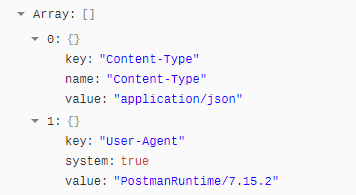
Let’s see above concept with an example.
Let’s add an header to a request as shown below:-
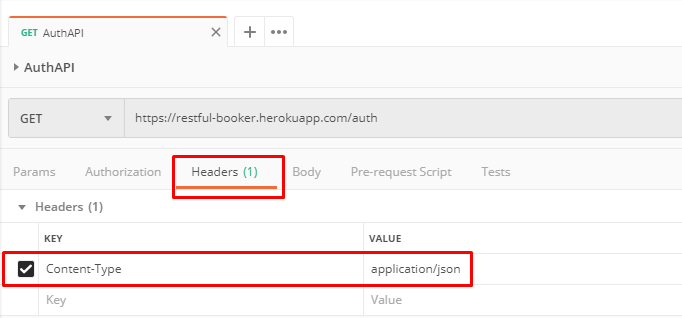
To get the count of headers, HeaderList provides a method count() which returns a number.
To iterate HeaderList, it provides a method called each(). So if we want to iterate header list one by one and print its content, we can write below code:-
var headers = pm.request.headers;
 //Print HeaderList
 console.log(headers)
 // To get count of headers
 console.log("Count of headers in request: "+headers.count())
 // Iterate and print one by one
 headers.each((header) =>
 {
      console.log(header.key)
      console.log(header.value)
      console.log(header.name)
 });
Add above code in “pre-request Script” tab and run. We can add above code in “Tests” tab as well but there is a concept which we will see in sometimes. After sending the request, check Postman console. Since request has only one header, it gives an array of size one, prints the count of headers and print content of header one by one.
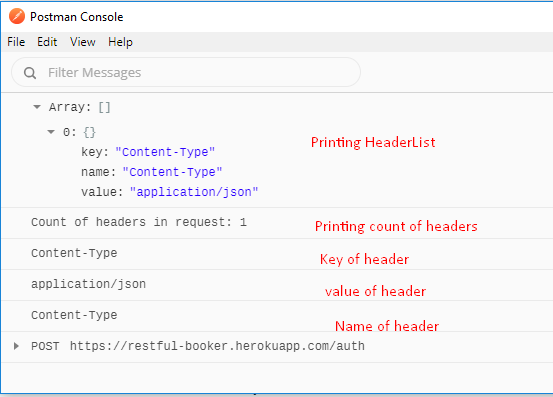
We have extracted request headers above. Now let’s extract response headers. To get the Response headers, add below code in “Tests” tab. You can see below code is slightly different from above code. We just need to use “response” in place of “request”.
var headers = pm.response.headers;
 console.log(headers)
 headers.each((header) =>
 {
      console.log(header.key)
 });
Run the request and check postman console. You see many headers as it is added dynamically to response.
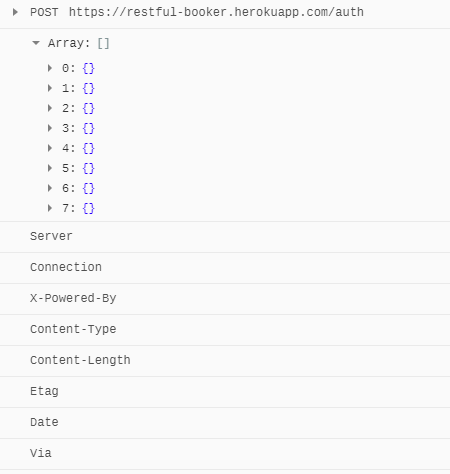
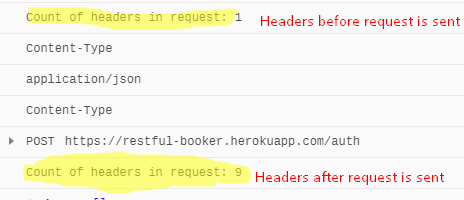
There is little twist with pm.request.headers based on where we are using. If we use pm.request.headers in Pre-request Script, it only considers headers which we are explicitly adding to request. But if we use it in “Tests‘ tab, it will consider headers added by users as well as temporary headers added to request that was sent.
You can see list of temporary headers in request builder area:-
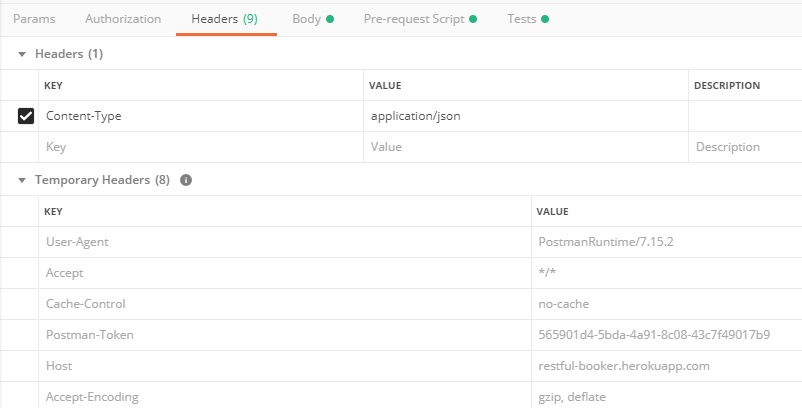
So let’s retrieve temporary headers with user added headers as well by adding below code in Tests tab:-
// Getting list of headers
 var headers = pm.request.headers;
 // To get count of headers
 console.log("Count of headers in request: "+headers.count())
We can directly call get() method of HeaderList with header name. It will give the value of header.
pm.response.headers.get(“Server”)
pm.expect(pm.response.headers.get(“Server”)).to.eql(“Cowboy”)
There are many method which you can play around. I discussed important methods which we use for API testing.
More about API Testing and Postman Tutorials in upcoming posts. Stay tuned.
If you have any doubt, feel free to comment below.If you like my posts, please like, comment, share and subscribe.#ThanksForReading
#HappyApiTesting