We have seen creating environment and global variables manually. You can refer them here:-
Understand Environment & Variables in Postman
Create, Manage and Use Environment In Postman
Create, Manage and Use Global Variable In Postman
In above ways, manually we need to add variables with value. Sometimes we may need to update or add variables or values at runtime. For example:- You are creating a user and that user should be used for other APIs. We need to extract user details from response and add to environment. This needs to be done at runtime only.
We can add, update, get or remove global and environment variables at runtime using scripts in Postman. We use a global function named “pm.*” of Postman Sandbox environment. We can do it in both Pre-request Script and Tests.
Setting an environment variable:
pm.environment.set("variable_name", "variable_value");
Getting an environment variable:
pm.environment.get(“variable_name”);
Clear or unset an environment variable:
pm.environment.unset("variable_name");
Example:-
- When we do not select any environment, still we can manage environment variables through scripts. But variable will be accessed till the execution is going on. Variable will be removed once execution is over.
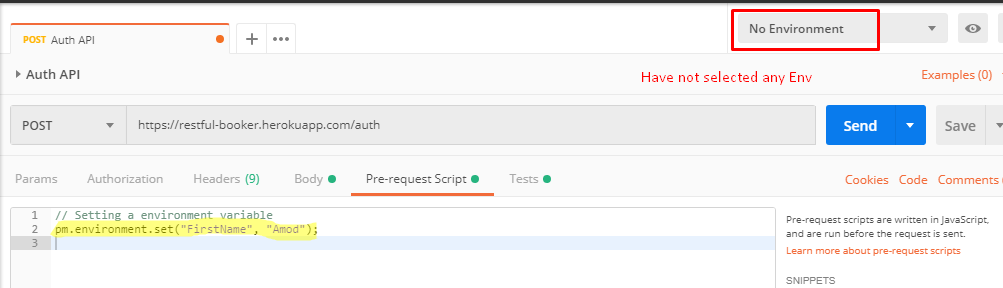
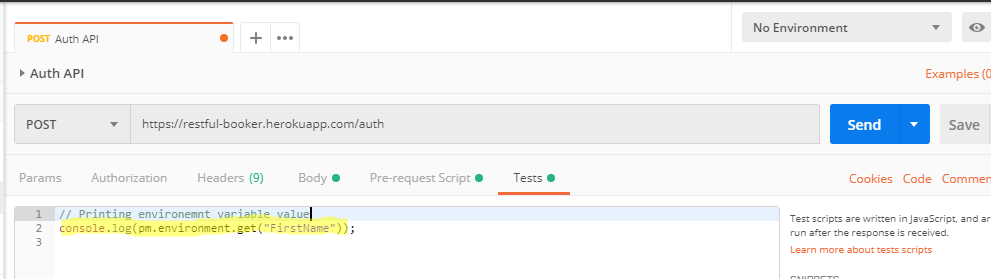
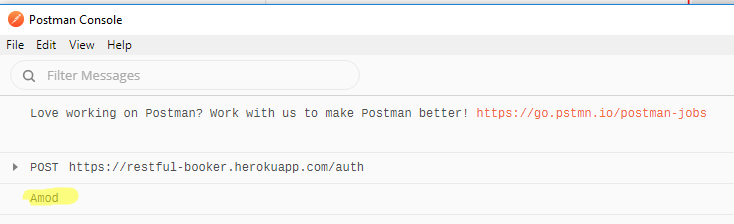
2. When we select any environment, operations performed at variables will persist after execution as well.
Create an environment without any variables. (You can have existing variables in environment. I am taking an empty just for example purpose.)
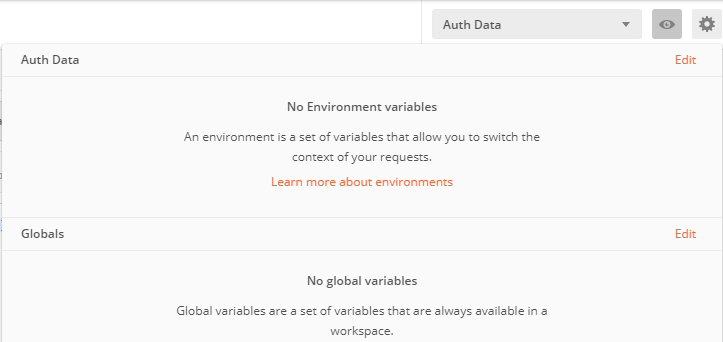
Now run the same above scripts. Only change is that now we have selected “Auth Data” as Environment.
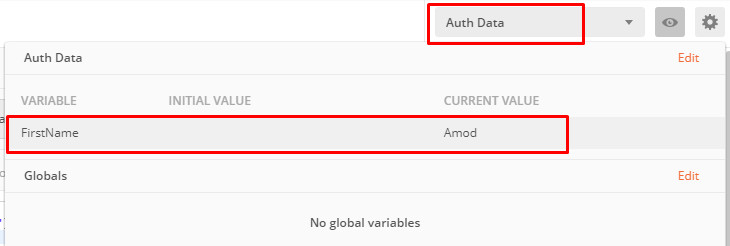
You can see that variable “FirstName” persists even after execution in environment. If we try to set an environment which is already present in Environment, value will be overwritten.
We can check presence of a variable in an Environment using below sandbox API:-
pm.environment.has(“Variable_Name”)
It returns true if present else false.
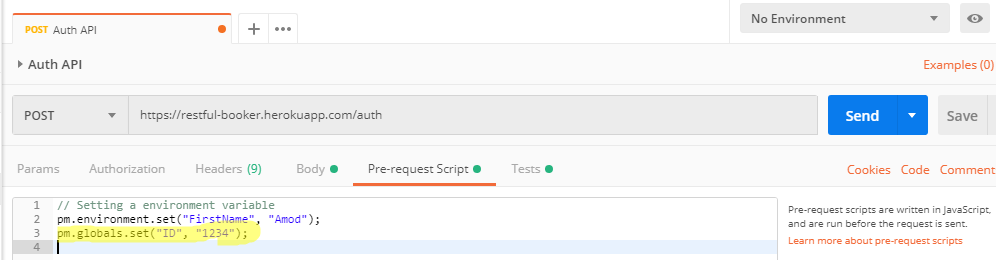
Set a global variable:
pm.globals.set("variable_name");
Get a global variable:
pm.globals.get("variable_name");
Clear a global variable:
pm.globals.unset("variable_name");
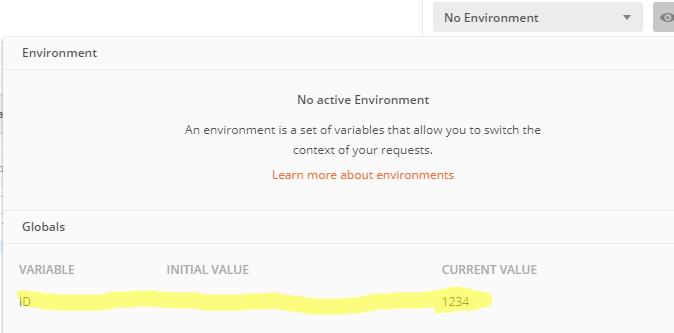
Since global variables are not dependent on selection of environment, operation performed at global variables persist after execution.
More about API Testing in upcoming posts. Stay tuned.
If you have any doubt, feel free to comment below.If you like my posts, please like, comment, share and subscribe.#ThanksForReading
#HappyApiTesting