As a part of Postman Tutorial – End to End, in this post, we will learn the “Installation of Postman Tool as a Chrome app, Native app and web version”
Initially, the Postman tool was introduced as an extension/app of the Chrome browser. Postman Chrome app can run only on the chrome browser which was a critical limitation. And also Postman Chrome app had to download the Postman Interceptor Chrome extension in order to manage cookies and capture requests in the desktop browser. Postman has announced to stop support for the Chrome Postman app further.
We should not use Postman as a Chrome extension now. But if you still want to give it a try then navigate to Chrome Postman App and click on a “Add to Chrome” button.
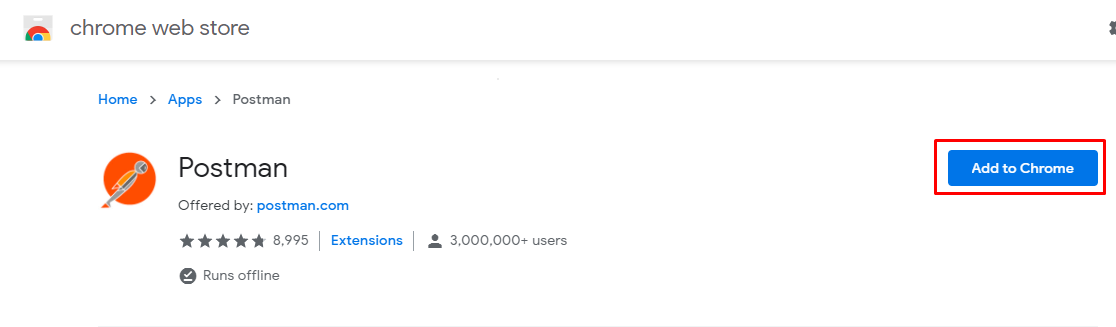
Once added to Chrome you can see and launch Postman from Chrome apps. On launch, it will ask you to download Chrome native app and log in or sign up to Postman account. You can skip both and go-to the app. You will see a deprecated warning for the Chrome app as below.

The Postman Chrome app is deprecated now. Postman tool is available as a native app for macOS, Windows (32 bit & 64 bit), and Linux operating systems. Postman tool is a platform-dependent tool. You need to download an appropriate Postman tool as per your operating system. You can download the Postman tool for your platform here.
The ever-improving Postman app (a new release every two weeks) gives you a full-featured Postman experience.
It automatically identifies the operating system and shows you a direct download option. As I am using a Windows machine, the Postman download web page shows me a link to download a Postman tool for windows as shown below.

On click on “Download the App“, it will ask you to select 32 bit or 64 bit. On selection of bit, a .exe file will be downloaded. A file with extension exe is an executable file for windows. Now you need to double click on the downloaded exe file and follow instructions.
And I am not going to show you the steps of installation because it is as easy as any normal software you install. It will be launched automatically as it completes the installation. If it does not launches automatically then you can search and click on it. You can create a desktop shortcut for Postman as well.
It will ask you to create a free account. You can continue without creating an account. Registered users will have more advantages which we will see in upcoming posts in this Postman series. You can skip registering or sign in and directly navigate to the app by clicking on the link highlighted below:-

Once you launch Postman after registration or without registration, it will be almost similar as below:

If you register or sign in and check “Keep me signed in” then whenever you launch a Postman app, you will be signed in. You can see signed in account details as below:-

Now there is no need to download and install the Postman native app. You can directly use Web Postman. You can launch the Postman web from here. But to use Postman web you just need to have an account. But sending a request through a browser comes with a lot of limitations. To fully use all that Postman has to offer, download and use the Postman Desktop Agent to send your requests.
You will see a screen something as below:-

Note – Postman is updated every two weeks and you may find differences in screens shown in this post.
You can subscribe to my YouTube channel RetargetCommon to learn from video tutorials.
If you have any doubt, feel free to comment below.If you like my posts, please like, comment, share and subscribe.#ThanksForReading
#HappyLearning