Hello Folks,
We have already seen below topics:-
- Introduction to Collections in Postman
- Creating a Collection in Postman
In this post, we will share and import collection as a link in Postman.
Once you create a collection in Postman, you may required to share with others. We can share a collection in multiple ways in Postman. In this post we will see a more common way of sharing a Postman Collection using a link.
You must have working internet connections to generate and import a collection link in postman.
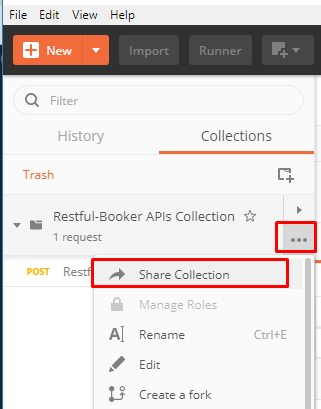
- Click on ellipsis (…) button on a Collection which you want to share and select “Share Collection” button.
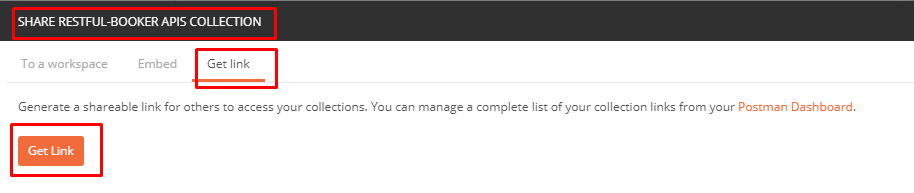
2. It will open a window with header “Share ” . Click on “Get Link” tab and click on “Get Link” button”.
3. You will see a link will be generated.
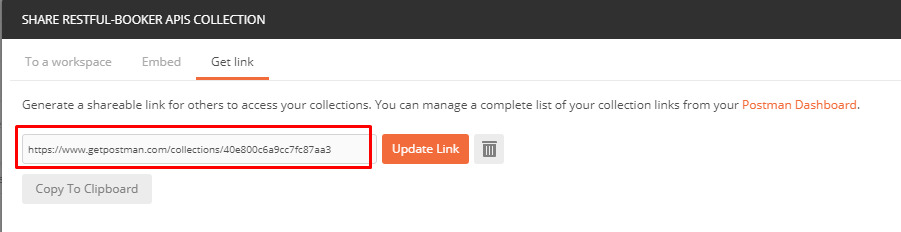
Now any one can import your collection using above link.
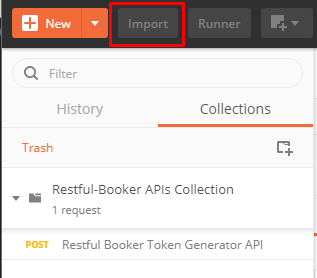
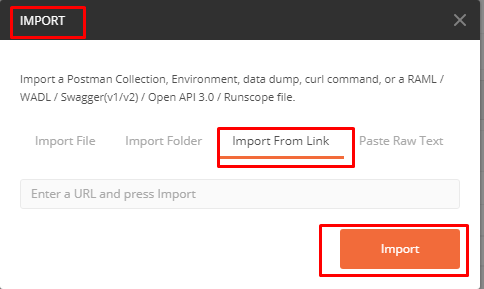
- Click on “Import” button.
2. “Import” window will be launched. Click on “Import from link” tab.
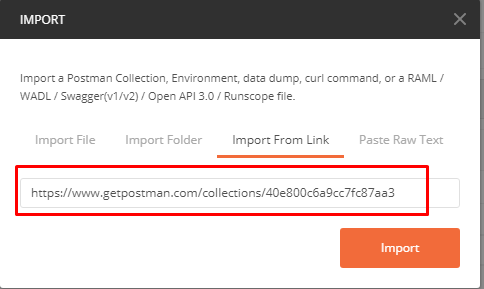
3. Paste your postman link and click on “Import” button.
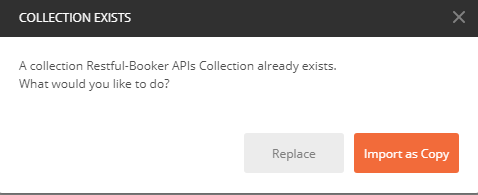
4. Since, I am importing collection in same workspace of mine, so it will conflict with existing collection. You can choose “Replace” or “Import as Copy”.
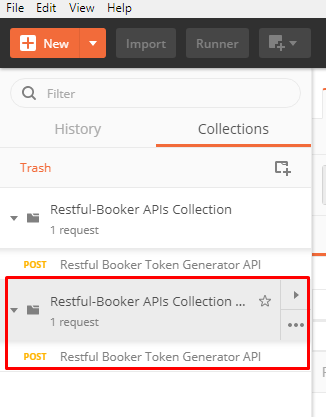
5. I selected “Import as Copy “. You will see a new collections imported in Postman.
- Generated Link will not be updated automatically when Collection owner does any changes to collection. Collection owner needs to update link and you need to re-import it. Remember link will be same on updation. You can delete and re generate as well, In this case, link will be different from old. Updation of collection can be done using Postman Pro API also.
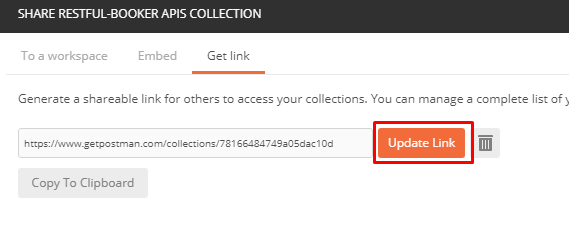
2. If Collection owner deletes the link using Delete button, you can not import it.
3. Collection link will be active even owner has deleted the complete collection. Owner can delete it only using web postman and has a account.
4. When we import any collection through link, shareable link is not imported. You can click on ellipsis (…) button on an imported Collection and select “Share Collection”. You will not see any existing link in “Get Link” tab.
More about API Testing in upcoming posts. Stay tuned.
If you have any doubt, feel free to comment below.If you like my posts, please like, comment, share and subscribe.#ThanksForReading
#HappyApiTesting