Hello Folks,
While automating, you may encounter issues as below:
- Element is not clickable, other element would receive click.
- Screenshot of required web element is not captured.
- Element is not visible while element is present in DOM.
- Unable to capture screen of whole web page vertically or horizontally.
All these problems could be solved using scrolling the page up and down properly. Selenium has no default method to scroll web page. But we can achieve this using javascript commands.
Note: Almost all browsers scroll to web element on which action needs to be performed by default, but sometimes it does not happen. In this case you need to observe behavior and if does not scroll correctly, you need to do it manually.
Javascript provides below methods to scroll:
- scrollBy (x-coord, y-coord)
- scrolTo (x-coord, y-coord)
- scroll (x-coord, y-coord)
Where:
x-coordis the pixel along the horizontal axis of the document that you want displayed in the upper left.y-coordis the pixel along the vertical axis of the document that you want displayed in the upper left.
Just remember axes of Mathematics. I hope you must remember co-ordinates representation. We have four quadrant based on sign of x and y values. We can just use mathematics concept and scroll web page up and down by providing required co-ordinates. Here, you need to scroll in positive quadrant i.e. first quadrant. If you want to play with position, use setPosition method.
Now you must be thinking, difference among above three methods. Let’s learn trick now.
This trick I got to learn after lot of experiments which I will share here. Many guys complaint that scroll is not working. This might be reason for that. Let’s start:
scrollTo( (x-coord, y-coord):
Follow below steps:
- Open a browser and loan any URL. I will open MakeSeleniumEasy.
- Press Ctrl+Shift+I. You will land to Console tab.
You will see web page loaded as below:
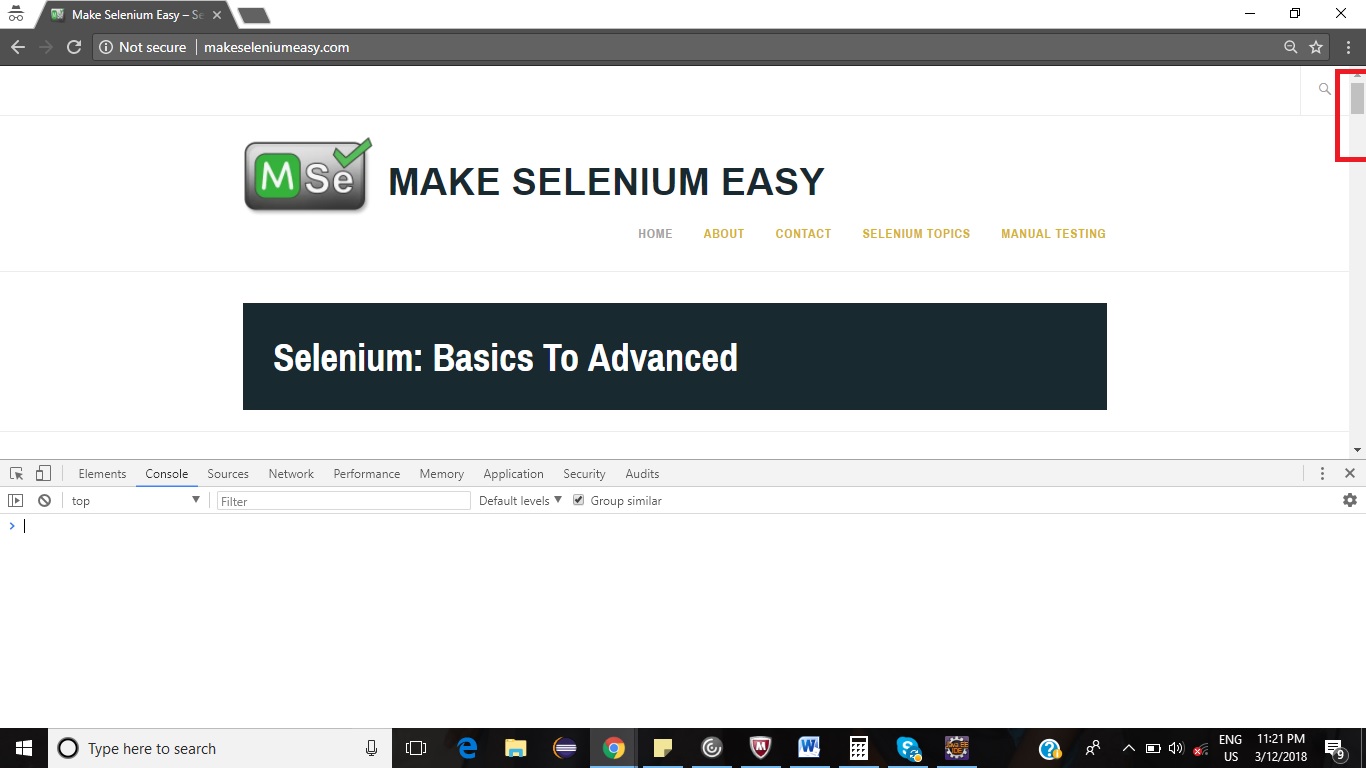
Notice the position of vertical scroll bar at top right corner. It is on top at beginning.
3. Now type “window.scrollTo(0,500)” command in Console and hit enter. Observe the vertical scroll bar now. You will see vertical scroll bar has been scrolled by 500 pixels vertically because you have passed 500 as value of Y co-ordinates.
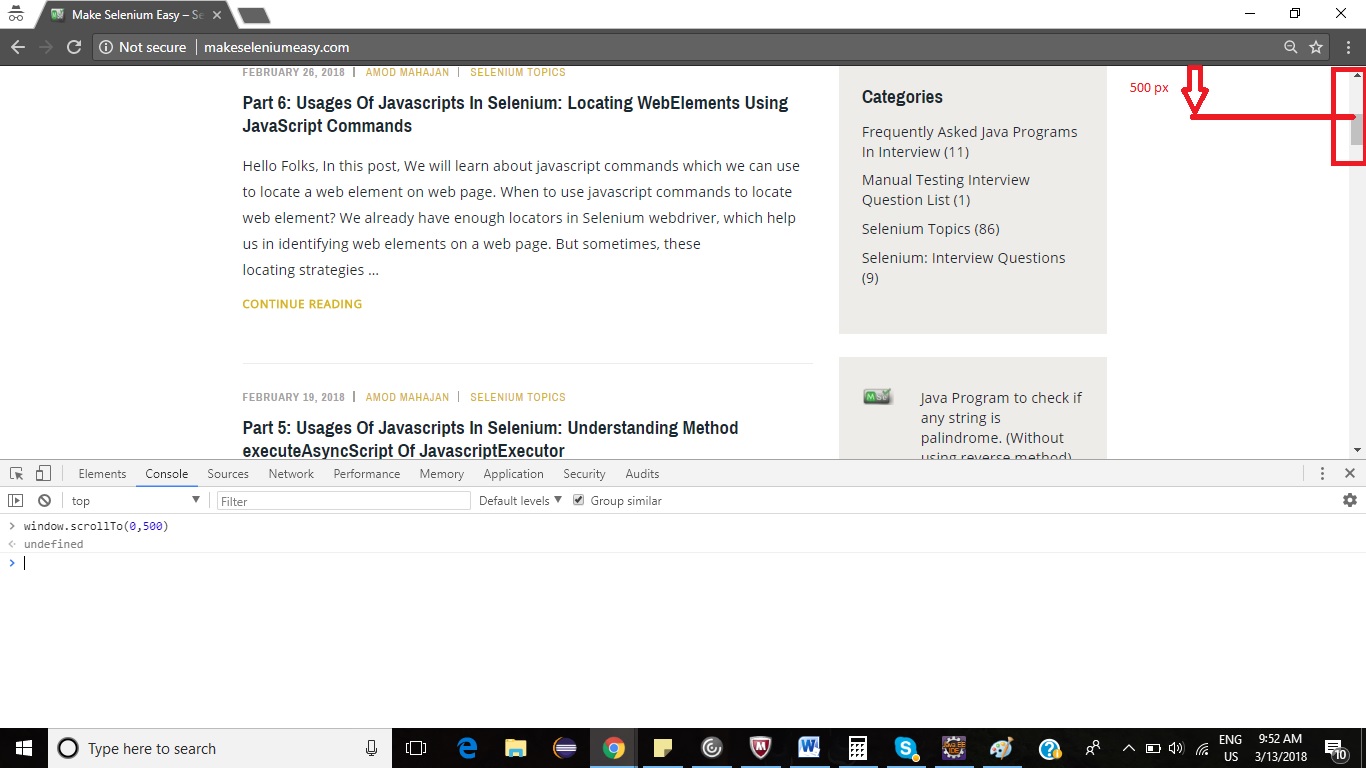
4. Now do the trick here. Type same command and hit enter. You can use Up arrow key as well to see old commands run same as UNIX console.
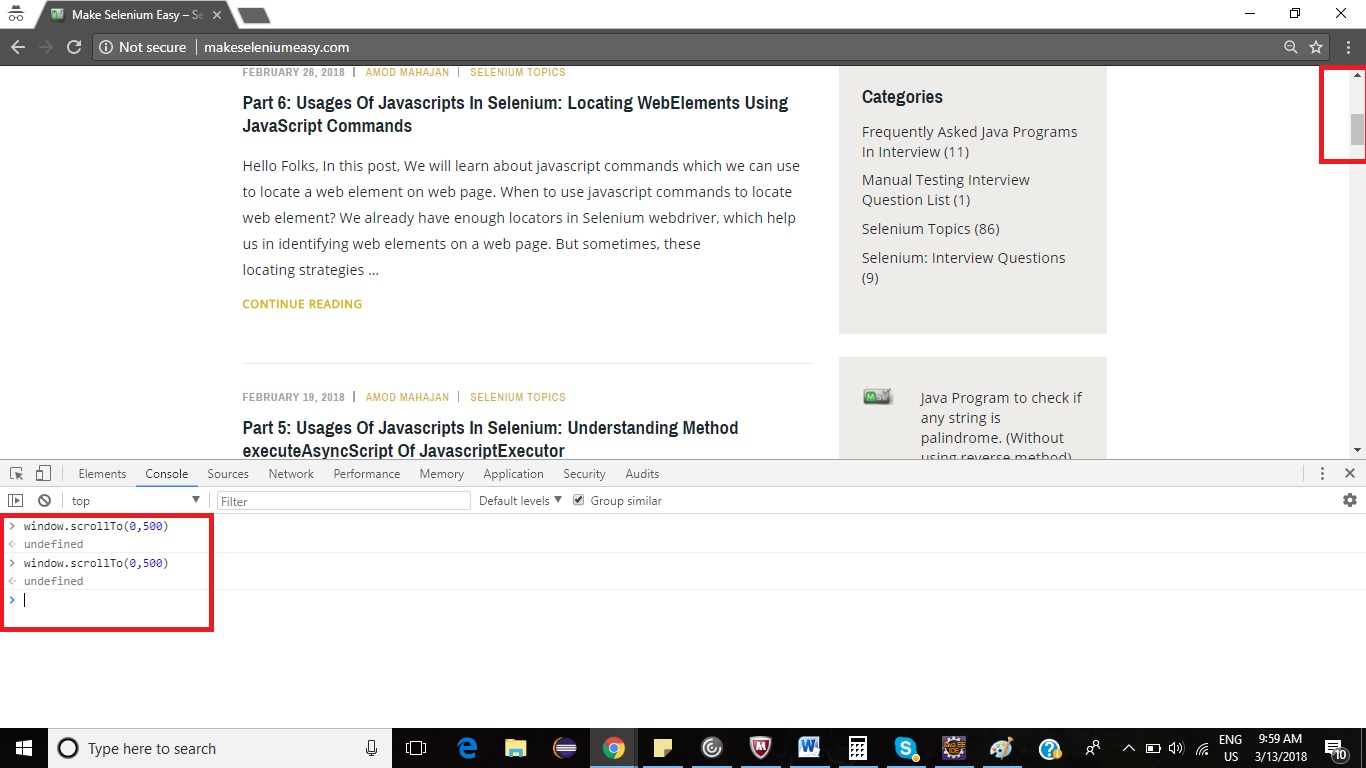
You must observe that there is no further scroll vertically. It is because scrollTo method scrolls by pixels from position(0,0). It will check current scrolled position first and then it will decide whether to scroll further or not. Let’s see as below:
a. After first scrollTo(0,500), current scrolled position is (0,500) from (0,0).
b. When we pass same command with position (0,500), scrollTo understands that it needs to scroll to (0,500) from (0,0) which is already scrolled. So no further scrolled happened.
c. Now type command window.scrollTo(0,800) and hit enter. This time scrollTo will scroll but only 300 pixels further to match it with (0,800) from (0,0) as current scrolled position is (0,500) and it just need to scroll (0,300) only.
d. If type command as “window.scrollTo(0,-600)” and hit enter, scrollTo method will scroll up and will settle at (0,0) as further scroll to negative quadrant is not possible here.
So the conclusion is that scrollTo scrolls by pixels considering current scrolled position and compares with (0,0) and decides whether to scroll or not.
scrollBy (x-coord, y-coord):
Follow below steps:
- Open a browser and loan any URL. I will open MakeSeleniumEasy.
- Press Ctrl+Shift+I. You will land to Console tab.
You will see web page loaded as below:
Notice the position of vertical scroll bar at top right corner. It is on top at beginning.
3. Now type “window.scrollBy(0,500)” command in Console and hit enter. Observe the vertical scroll bar now. You will see vertical scroll bar has been scrolled by 500 pixels vertically because you have passed 500 as value of Y co-ordinates.
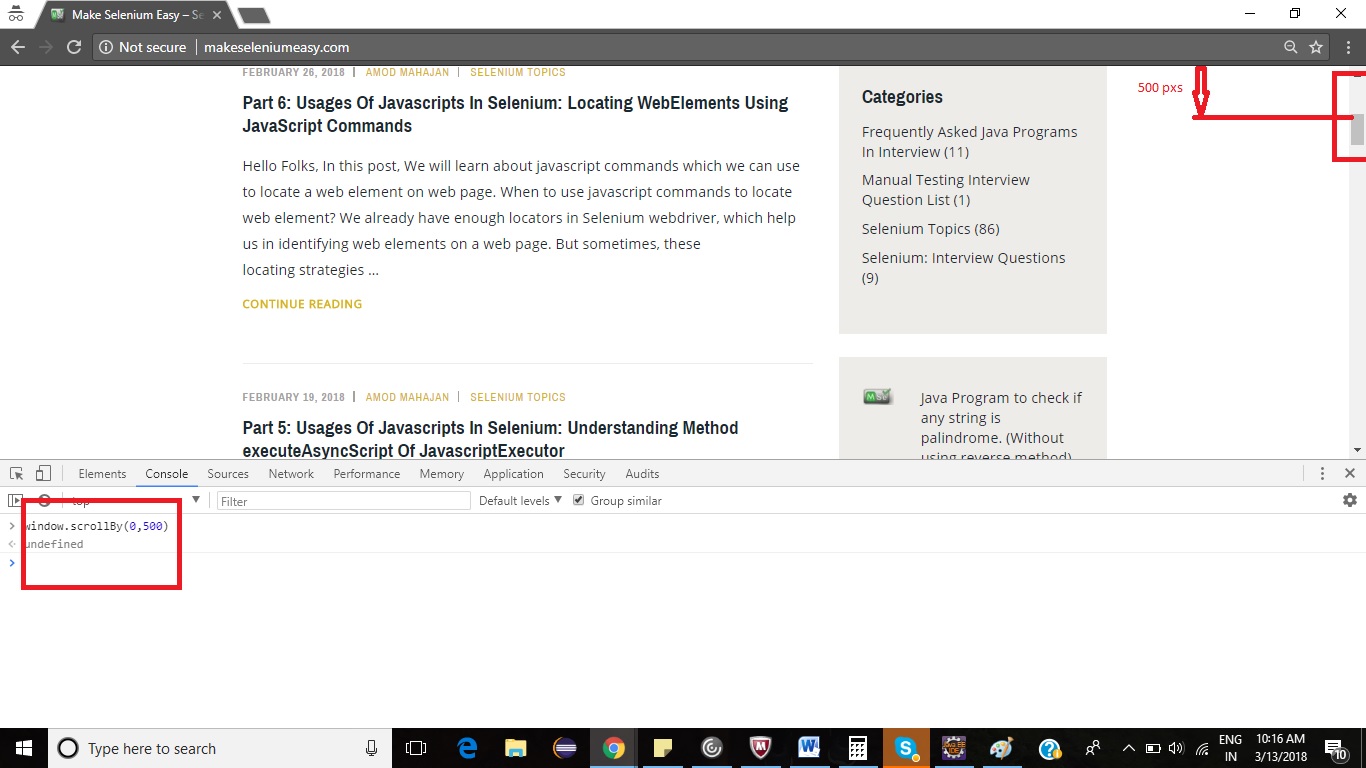
4. Now do the trick here. Type same command and hit enter. You can use Up arrow key as well to see old commands run same as UNIX console.
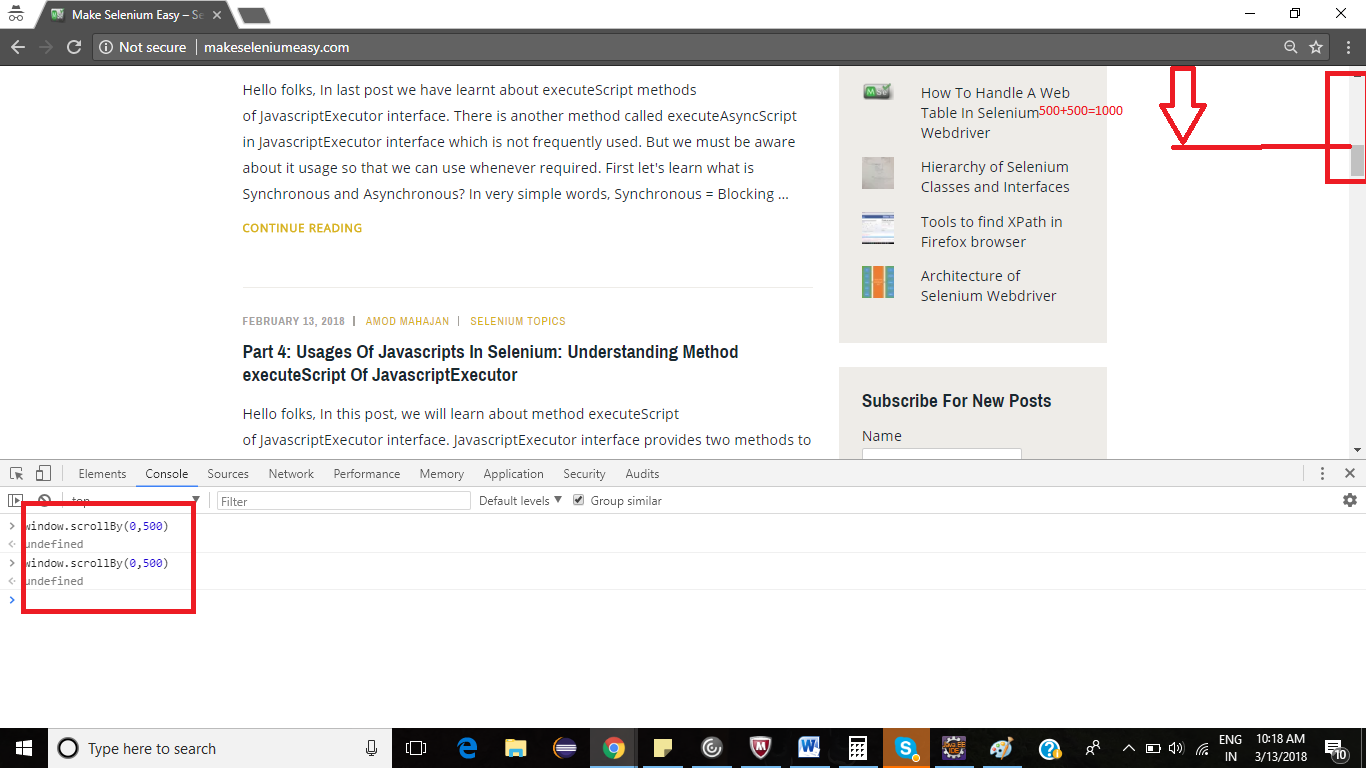
You must observe that there is further scroll and it will be (0,1000). It is not same as scrollTo behavior. It means scrollBy always scrolls up or down further from current position. Or you can say scrollBy scrolls by distance from current pixels. Or you can say scrollBy consider current position as (0,0) and scroll further.
This is the trick when you you are unable to scroll or javascript scroll is not working. You need to check which method you are using.
scroll (x-coord, y-coord):
Javascript scroll method is same as scrollTo method. There is no difference in functionality but implementation by browser. Some browsers supports both methods or some will not. Major browsers Chrome, firefox, safari support both methods of javascript to scroll.
That’s it guys. Hope you must have learnt new thing in this post. In next post we will see how to use it in selenium webdriver.
If you have any doubt, feel free to comment below. If you like my posts, please like, comment, share and subscribe. #ThanksForReading
#HappySelenium