Hello Folks,
We will see series of posts on Usage of JavaScripts in Selenium. Let’s start with basics.
What is JavaScript?
Definition from JS offical website:
“JavaScript (“JS” for short) is a full-fledged dynamic programming language that, when applied to an HTML document, can provide dynamic interactivity on websites.”
I hope you should be aware of basic js. If not, you can refer any online tutorials.
How to execute a js command in any browser manually:
Every browser is js enabled by default which you can disable as well. You can run any js command in a browser. You just need to launch browser console. In console, type any js command and hit enter.
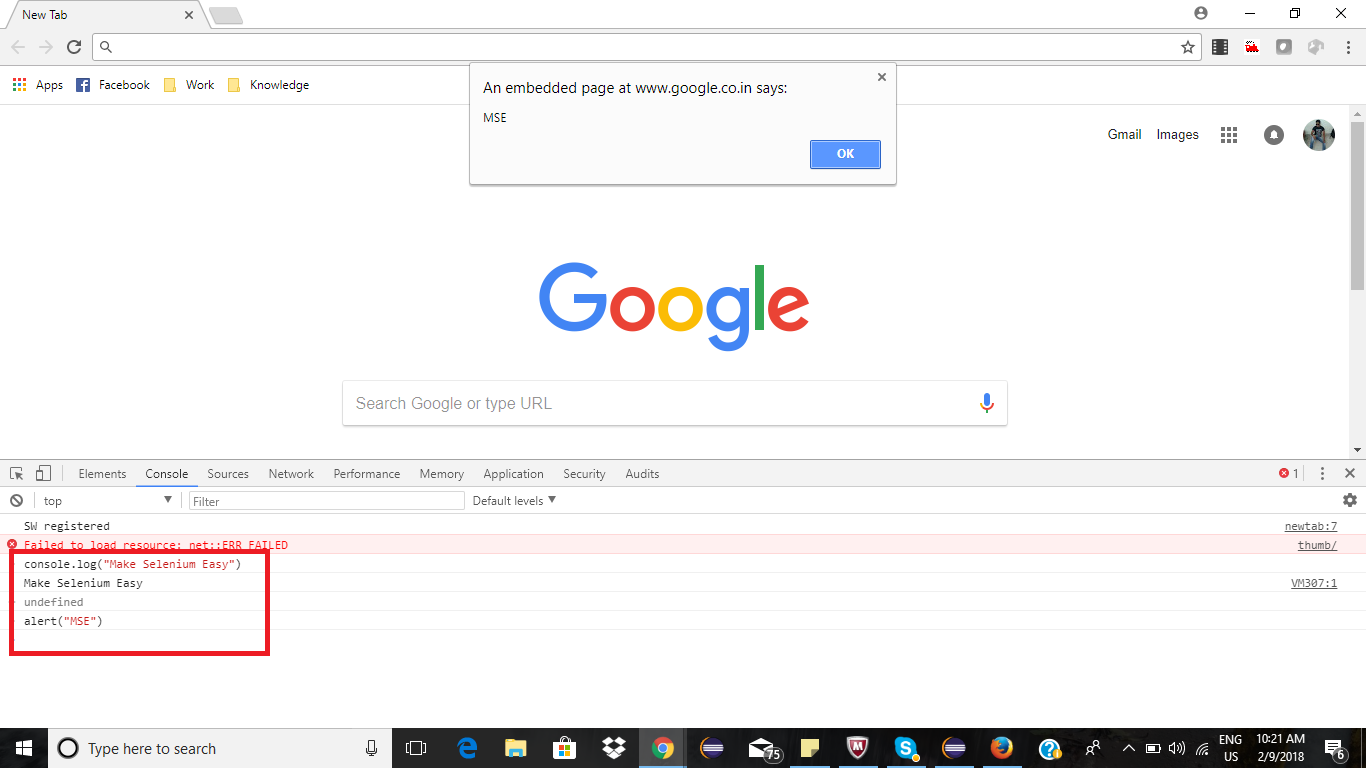
Why we need to execute js commands in Selenium?
Sometimes you will find Selenium commands are not working properly. Below examples are from my working experience on Selenium:
- Handling nested web elements. I have seen some toggle buttons , check boxes etc which are nested by some other tags like label etc. Normal selenium command “Click” will not be able to click on toggle sometimes, as it will find it is not clickable.
- Complete area of some web elements like button, checkbox etc are not clickable. You need to click on specific part of element to perform action. Selenium might fail here some times. In this case also js is very useful.
- Handling different types of calendar. There are so many types of calendar which are used by developers in different applications. You may need to write separate methods to handle calendar. Here js will solve your problem.
- Scrolling is also a big problem in selenium. Using js, you can scroll by pixels or to the web element.
- Handling hidden elements. You can use js to get text or attribute value from hidden web element which can not be done by normal selenium methods.
- Drag and drop issues can be handled using js.
There are many other occasion where automation testers find js as a better option. Anyways using javascript commands should be last resort if normal selenium commands are not working.
Next post onward, we will see frequently used js commands in selenium. Stay tuned.
If you have any doubt, feel free to comment below. If you like my posts, please like, comment, share and subscribe. #ThanksForReading
#HappySelenium