Hello Folks,
In last post we have seen an important topic in Selenium Webdriver which was Handling Any Types Of Listbox/dropdown In Selenium Webdriver. Method discussed in this post will work for all types of drop-down created using any tags.
Mostly drop-down are created using tag and Selenium provides a special way to handle such drop-downs. It is very simple and easy.
We will cover below topics in this post:
- What is SELECT tag?
- Types of SELECT drop-downs.
- How to create drop-downs.
- What is Select class?
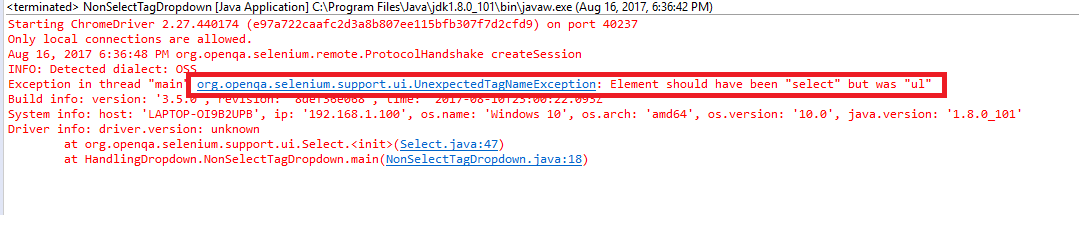
- Why we get UnexpectedTagNameException while using Select class?
What is tag?
The element, used along with one or more elements, creates a drop-down list of options for a web form. The element creates the list and each element is displayed as an available option in the list.
Drop-down can be of two types:
1. Single select drop-down: You can select only single value at a time.
2. Multi select drop-down: You can select more than one value at a time.
Single select drop-down example:
If you open above html code in a browser, you will drop-down as below:
[xyz-ihs snippet=”SingleSelectDropdown”]
Click on drop-down, you will see list of values. Choose any one value, that value will be shown as selected.
Multi select drop-down example:
To create a multiple drop-down, just you need to use “multiple” word within SELECT tag as shown below:
If you open above html code in a browser, you will drop-down as below:
[xyz-ihs snippet=”MultiSelectDropdown”]
You can select multiple values from above drop-down using ctrl key.
Handling tag drop-down in Selenium:
- Selenium developers provides a special class called “Select” to handle drop-down.
- “Select” class is in “org.openqa.selenium.support.ui” package.
- “Select” class models a SELECT tag and provides helper methods to select and deselect options.
Constructor in Select class:
I will explain a very common mistake done by Selenium beginners under this header.
As of now, we know “Select” class can be used only for SELECT tag drop-down. What happens when you try to use “Select” class for non SELECT tag drop-downs. Let’s see below example:
“Select” class provides an argument constructor which accepts a web element which should be a tag web element. This constructor checks that the given web element is a SELECT tag or not. If it is not, then an UnexpectedTagNameException is thrown.
Let’s see an example here:
If you see above code, drop-down is created using UL tag in stead of SELECT tag. We will locate drop-down first and then we will pass drop-down web element to Select class constructor.
Program:
Output: