I started a series of “Ready To Use Selenium Java Code”. In the first post in this series, we will learn “Storing a Web table data in to a List of Map using Selenium-Java.”.
A table is made of rows and columns. When we create a table for a web page, that is called as a web table. In HTML, a web table is created using
tag. Web table is a HTML structure for creating rows and columns on a Web page.
A web table can consists below parts:
- Header(s): It is created using
tag.
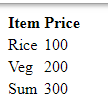
If you save above html code as .html and open a web browser, you will see output as below:-
So, we are going to learn how can we store a web table data in a Java Collection. Let’s start with logic and connect dots. Let’s have a bigger web table first. HTML Code is as below:-
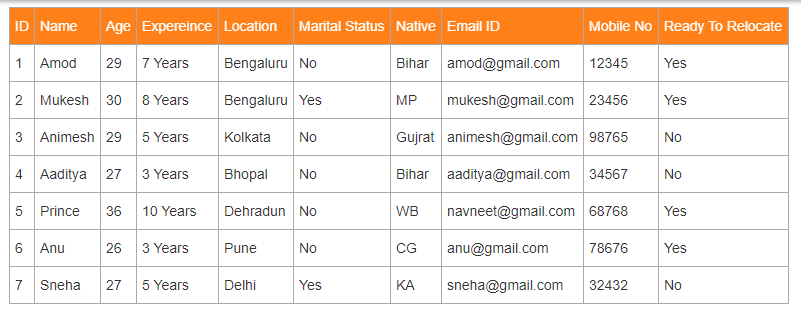
Save above html code in a file with .html extension and open in a web browser. You will see a table as below:-
Let’s break logic to multiple points first:- 1.First row is header and remaining are data. 2. We can store all data in a Java Collection List but identification of data is difficult i.e. which data represents which value. 3. It is good to store each row in a map where key will be header name and value will be current row cell value. For E.g. [Name=Amod, Age=29…..] 4. After adding a row in to Map, add that Map in to List. So we will have a List of Map. [{ID=1, Name=Amod, Age=29, Expereince=7 Years, Location=Bengaluru, Marital Status=No, Native=Bihar, Email [email protected], Mobile No=12345, Ready To Relocate=Yes}, {ID=2, Name=Mukesh, Age=30, Expereince=8 Years, Location=Bengaluru, Marital Status=Yes, Native=MP, Email [email protected], Mobile No=23456, Ready To Relocate=Yes}, …] 5. You can customize in whatever you want. You may want to store in a Map where ID or Name will be key and remaining as value for easy picking. [{Amod = {ID=1, Name=Amod, Age=29, Expereince=7 Years, Location=Bengaluru, Marital Status=No, Native=Bihar, Email [email protected], Mobile No=12345, Ready To Relocate=Yes}, {Mukesh = {ID=2, Name=Mukesh, Age=30, Expereince=8 Years, Location=Bengaluru, Marital Status=Yes, Native=MP, Email [email protected], Mobile No=23456, Ready To Relocate=Yes}, …] Below is Java Code. I have tried explaining code well. If you face any issue in understanding please send me a mail or comment. There may be more optimal way of doing the same. I welcome all refactored code as comment on post.
package WebTablesExamples; import java.util.ArrayList;
import java.util.LinkedHashMap;
import java.util.List;
import org.openqa.selenium.By;
import org.openqa.selenium.WebDriver;
import org.openqa.selenium.WebElement;
import org.openqa.selenium.chrome.ChromeDriver;
import org.testng.annotations.Test; import io.github.bonigarcia.wdm.WebDriverManager; public class ReadTableDataInListOfMap { @Test public void readTableDataInListOfMap() { // Browser initialization WebDriverManager.chromedriver().setup(); WebDriver driver = new ChromeDriver(); String fileURL = System.getProperty("user.dir"); driver.get(fileURL + "/src/test/resources/htmlFiles/WebTable.html"); // Let's get header first String headerLoc = "//table[@class='tg']//tr//th"; List allHeadersEle = driver.findElements(By.xpath(headerLoc)); List allHeaderNames = new ArrayList(); for (WebElement header : allHeadersEle) { String headerName = header.getText(); allHeaderNames.add(headerName); } // Each row will be a key value pair. So we will use LinkedHashMap so that order // can be retained. // All map will be added to a list. List> allTableData = new ArrayList>(); // Get total rows count String rowLoc = "//table[@class='tg']//tr"; List allRowsEle = driver.findElements(By.xpath(rowLoc)); // Starting from 2 as first row is header. Remember xpath index starts from 1 for (int i = 2; i  allColumnsEle = driver.findElement(By.xpath(specificRowLoc)) .findElements(By.tagName("td")); // Creating a map to store key-value pair data. It will be created for each // iteration of row LinkedHashMap eachRowData = new LinkedHashMap(); // Iterating each cell for (int j = 0; j < allColumnsEle.size(); j++) { // Getting cell value String cellValue = allColumnsEle.get(j).getText(); // We will put in to map with header name and value with iteration // Get jth index value from allHeaderNames and jth cell value of row eachRowData.put(allHeaderNames.get(j), cellValue); } // After iterating row completely, add in to list. allTableData.add(eachRowData); } System.out.println(allTableData); driver.quit(); } }
Output:- [{ID=1, Name=Amod, Age=29, Expereince=7 Years, Location=Bengaluru, Marital Status=No, Native=Bihar, Email [email protected], Mobile No=12345, Ready To Relocate=Yes},
{ID=2, Name=Mukesh, Age=30, Expereince=8 Years, Location=Bengaluru, Marital Status=Yes, Native=MP, Email [email protected], Mobile No=23456, Ready To Relocate=Yes},
{ID=3, Name=Animesh, Age=29, Expereince=5 Years, Location=Kolkata, Marital Status=No, Native=Gujrat, Email [email protected], Mobile No=98765, Ready To Relocate=No},
{ID=4, Name=Aaditya, Age=27, Expereince=3 Years, Location=Bhopal, Marital Status=No, Native=Bihar, Email [email protected], Mobile No=34567, Ready To Relocate=No},
{ID=5, Name=Prince, Age=36, Expereince=10 Years, Location=Dehradun, Marital Status=No, Native=WB, Email [email protected], Mobile No=68768, Ready To Relocate=Yes},
{ID=6, Name=Anu, Age=26, Expereince=3 Years, Location=Pune, Marital Status=No, Native=CG, Email [email protected], Mobile No=78676, Ready To Relocate=Yes},
{ID=7, Name=Sneha, Age=27, Expereince=5 Years, Location=Delhi, Marital Status=Yes, Native=KA, Email [email protected], Mobile No=32432, Ready To Relocate=No}]
You may need to edit code based on your web table but logic will be less or more same. You can clone code from my git repo. If you have any doubt, feel free to comment below.If you like my posts, please like, comment, share and subscribe.#ThanksForReading #HappyLearning |
|---|