This post belongs to End to End Log4j2 Tutorials.
We have already learned many concepts of Log4j2 and as of now, we are covering the Rolling File Appender concept and Working Mechanism Of Default Rollover Strategy. We are going to learn these concepts with examples in this post.
Did you know that I have started a YouTube channel as well and I need your support to make it successful. Please do watch content then comment, like, share, and obviously subscribe.
SizeBasedTriggeringPolicy, As the name, implies this trigger policy is based on the size of the log file. It causes a rollover once the file has reached the specified size. The size can be specified in bytes, with the suffix KB, MB or GB. When combined with a time based triggering policy the file pattern must contain a %i otherwise the target file will be overwritten on every rollover as the SizeBased Triggering Policy will not cause the timestamp value in the file name to change. When used without a time based triggering policy the SizeBased Triggering Policy will cause the timestamp value to change.
%d{yyyy-MM-dd-HH:mm:ss} %-5p %m%n
Similar to Console and File appender, we need to use RollingFile appender. Properties such as fileName (The name of the file to write to) and filePattern (The pattern of the file name of the archived log file) which we have learned in the previous post. We have defined a policy SizeBasedTriggeringPolicy with a property size for a value of 1KB. It means that as soon as the size of the current log file reaches 1KB, log file will be rolled as per filePattern.
Remember we need to keep log4j2.xml file in the resource folder. I have kept it inside src/main/resource folder.
We will use the same Java program used in previous examples-
package appCode;

import org.apache.logging.log4j.LogManager;
import org.apache.logging.log4j.Logger;

public class ModuleA {

        // Creating a logger
        private static Logger logger = LogManager.getLogger();

        // Log messages
        public static void main(String[] args) {

                logger.debug("It is a debug logger.");
                logger.error("It is an error logger.");
                logger.fatal("It is a fatal logger.");
                logger.info("It is a info logger.");
                logger.trace("It is a trace logger.");
                logger.warn("It is a warn logger.");

        }
}
Let’s run the above program the first time and refresh the project. You will see changes as below. You can also check the size of file.
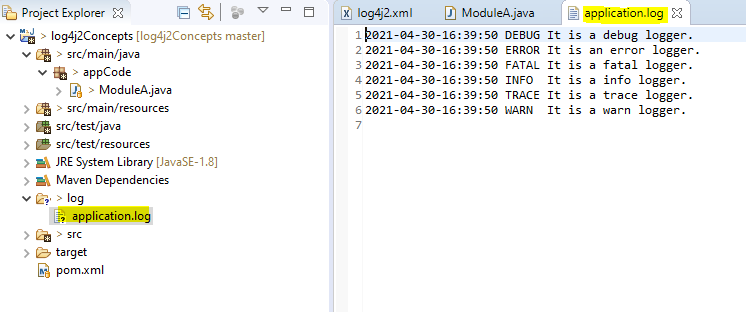
An initial log file named “application.log” is created which we have mentioned in fileName property in RollingFile. Rerun the same program multiple times at least 3 more times. Why I want you to run at least 3 times because after these runs size of the log file will be exceeding 1 KB. Once it exceeds, the current log file will be renamed based on filePattern and a new empty log file i.e. application.log will be created.
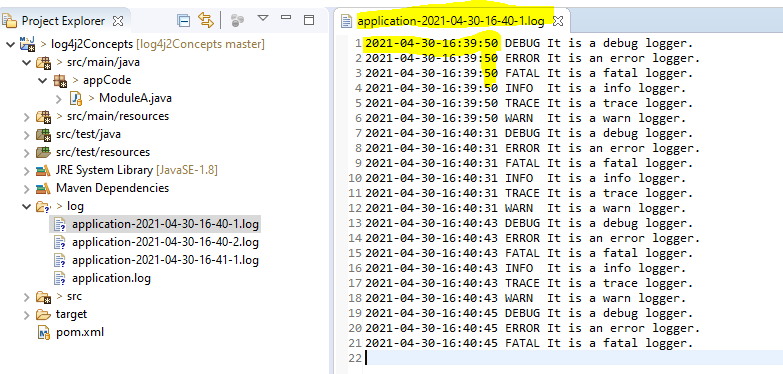
Run the same program multiple times continuously at least till a minute and you will see multiple log files as below:-
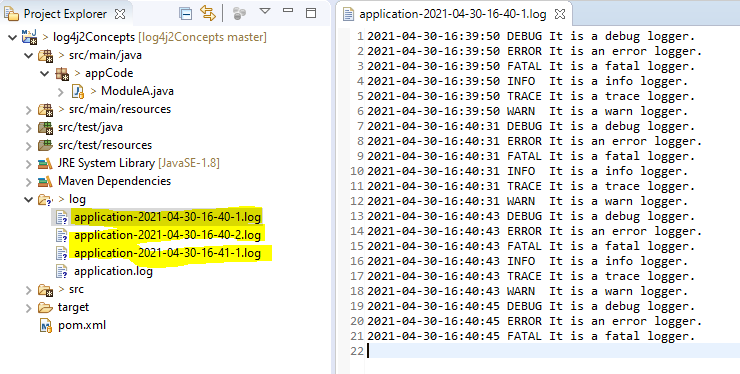
You should notice an integer value in the archived log files name. The same I have covered in the previous post.
The default rollover strategy accepts both a date/time pattern and an integer from the filePattern attribute specified on the RollingFileAppender itself. If the date/time pattern is present it will be replaced with the current date and time values. If the pattern contains an integer it will be incremented on each rollover. If the pattern contains both a date/time and integer in the pattern the integer will be incremented until the result of the date/time pattern changes.
Remeber that logs for an execution may be divided in multiple log files based on size. Log file will be rolled over as soon it reaches the size.
Log4j2 Example Codes
You can subscribe to my YouTube channel RetargetCommon to learn from video tutorials.
If you have any doubt, feel free to comment below.If you like my posts, please like, comment, share and subscribe.#ThanksForReading
#HappyLearning