In the previous post, we have learned to configure an XML file to print logs in a console i.e. console appender. But when the execution is over your console log will be gone until you divert it into an external file. Your desired logs will be mixed with other execution logs which you don’t want. So we may need to print logs in a separate file to which we can refer any time.
Did you know that I have started a YouTube channel as well and I need your support to make it successful. Please do watch content then comment, like, share, and obviously subscribe.
Always use the latest version of dependencies. I am using the below version of Log4j2 which is the latest at the time of writing this post.
org.apache.logging.log4j log4j-core 2.14.1
We have already learned about the configuration file in Log4j2 and where to place it and how to name it in the previous post. In this post, we will make changes to a configuration file so that the log will be stored in an external file.
Below is a very basic XML configuration to print logs in an external file.
%d{HH:mm:ss.SSS} [%t] %-5level %logger{36} - %msg%n
We had a console appender i.e Console tag inside the Appender tag in the previous post. In the same way, we need to have a File tag inside the Appender tag. We need to pass some attributes to the File tag i.e name and filename. name is given to File appender which will be used in Logger tag and filename is the file name to be created for store log.
There is no need to change anything in the program.
package appCode;

import org.apache.logging.log4j.LogManager;
import org.apache.logging.log4j.Logger;

public class ModuleA {

        // Creating a logger
        private static Logger logger = LogManager.getLogger();

        // Log messages
        public static void main(String[] args) {

                logger.debug("It is a debug logger.");
                logger.error("It is an error logger.");
                logger.fatal("It is a fatal logger.");
                logger.info("It is a info logger.");
                logger.trace("It is a trace logger.");
                logger.warn("It is a warn logger.");

        }
}
You will see a folder named “log” will be created within the root of the project and a file “myapp.log” will be created. You can see logs as shown below in that file. Since we have set log level as trace so it will print everything.
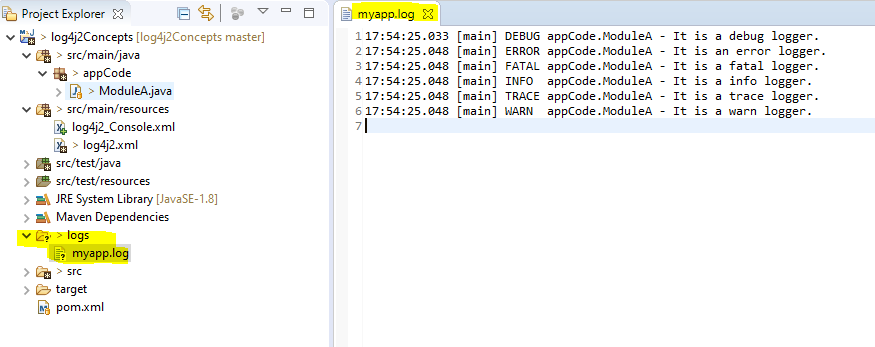
If we run the same program again and make sure we do not delete the existing log file then you will notice that new logs after another run will be appended in the same file.
17:54:25.033 [main] DEBUG appCode.ModuleA - It is a debug logger.
17:54:25.048 [main] ERROR appCode.ModuleA - It is an error logger.
17:54:25.048 [main] FATAL appCode.ModuleA - It is a fatal logger.
17:54:25.048 [main] INFO  appCode.ModuleA - It is a info logger.
17:54:25.048 [main] TRACE appCode.ModuleA - It is a trace logger.
17:54:25.048 [main] WARN  appCode.ModuleA - It is a warn logger.
09:40:22.805 [main] DEBUG appCode.ModuleA - It is a debug logger.
09:40:22.809 [main] ERROR appCode.ModuleA - It is an error logger.
09:40:22.809 [main] FATAL appCode.ModuleA - It is a fatal logger.
09:40:22.809 [main] INFO  appCode.ModuleA - It is a info logger.
09:40:22.810 [main] TRACE appCode.ModuleA - It is a trace logger.
09:40:22.810 [main] WARN  appCode.ModuleA - It is a warn logger.
We may not require this behavior. To override this behavior we need to set “append” attribute as “false” for File tag as below:-
%d{HH:mm:ss.SSS} [%t] %-5level %logger{36} - %msg%n
If you run the same program then the log file is overwritten.
We are losing old log data in the above setup which we may not want. We can create a log file with a timestamp which will give the log file a unique name always i.e. at every run.
%d{HH:mm:ss.SSS} [%t] %-5level %logger{36} - %msg%n
When we execute the same program then a new log file with a current timestamp in its name will be created.

Log4j2 Example Codes
You can subscribe to my YouTube channel RetargetCommon to learn from video tutorials.
If you have any doubt, feel free to comment below.If you like my posts, please like, comment, share and subscribe.#ThanksForReading
#HappyLearning