Hello Folks,
In last post, we have seen how to create a conditional xpath. Continuing the same, here is another post.
Consider below scenarios:
- Suppose there is an application for online appointment with doctors. If a user frequently signs in, it will show a message and button as “Welcome ! Book An Appointment” to proceed further. If user signs after a long time, it will show a message with button as “Welcome Back !Book An Appointment”. You just need to click on button to proceed as you just do not care user is signing frequently or not. Both buttons will have different locators and you will write java selenium code as below:
You need to write a good number of lines of code. If you have multiple scenarios as above, repetitive work and lengthy code.
2. You have a form with some questions on it which user needs to fill up. There are some questions which are dependent on user’s answer. For example: If user has a middle name then a new text box is shown to user otherwise no. If user is female or male, based on selected gender, some extra questions will be shown to user. Web elements has no unique IDs and you need to use indexing concepts. For example by default First Name and Last Name text boxes indexes will be one and Two respectively. So you use as per that. If user has middle name, a new text box which will be in between of First name and Last name. Your indexing will fail here. You need to write good logic for it to handle.
3. Your application is so much dynamic. Every time you need to write complete new locators to find same web element. But you know that at any time it could be identify by fixed N number of locators. In this case also , you need to write complex code.
Many of us would have done the same but actually its not required to write code for this. You just need to handle it through locators i.e. Dynamic locators. Let’s learn how.
Locating a web element using multiple xpaths:
Suppose a web element has 3 different types of unique xpaths every time: Locator 1 , Locator 2, Locator 3.
In stead of using try catch block, use below combined xpaths using pipe symbol (‘|’):
by.xpath(“Locator 1 | Locator 2 | Locator 3”)
Syntax: driver.findElement (by.xpath(“Locator 1 | Locator 2 | Locator 3”));
It will try to locate web element by all three locators and you know it will be located surely at least by one locator. If more than one xpaths locate element, it will combined and return unique element.
Above concept can be used in other scenarios as well. For example: You need to find all text boxes, buttons and links. In stead of using findElements three times for each locators, you can combine in one and store in a List as below:
List = driver.findElements(by.xpath(“Locator for all text boxes | Locator for all buttons | Locators for all links”));
Solution of above scenarios:
Scenario 1:
Xpath for button “Welcome ! Book An Appointment” : Locator 1
Xpath for button “Welcome Back !Book An Appointment” : Locator 2
driver.findElement(by.xpath(“Locator 1|Locator 2”)).click();
No need of writing try catch block codes at all.
You can try for remaining two scenarios above.
Let’s try an example:
I don’t have any dynamic web element but I will try to locate an element using two different xpath as below:
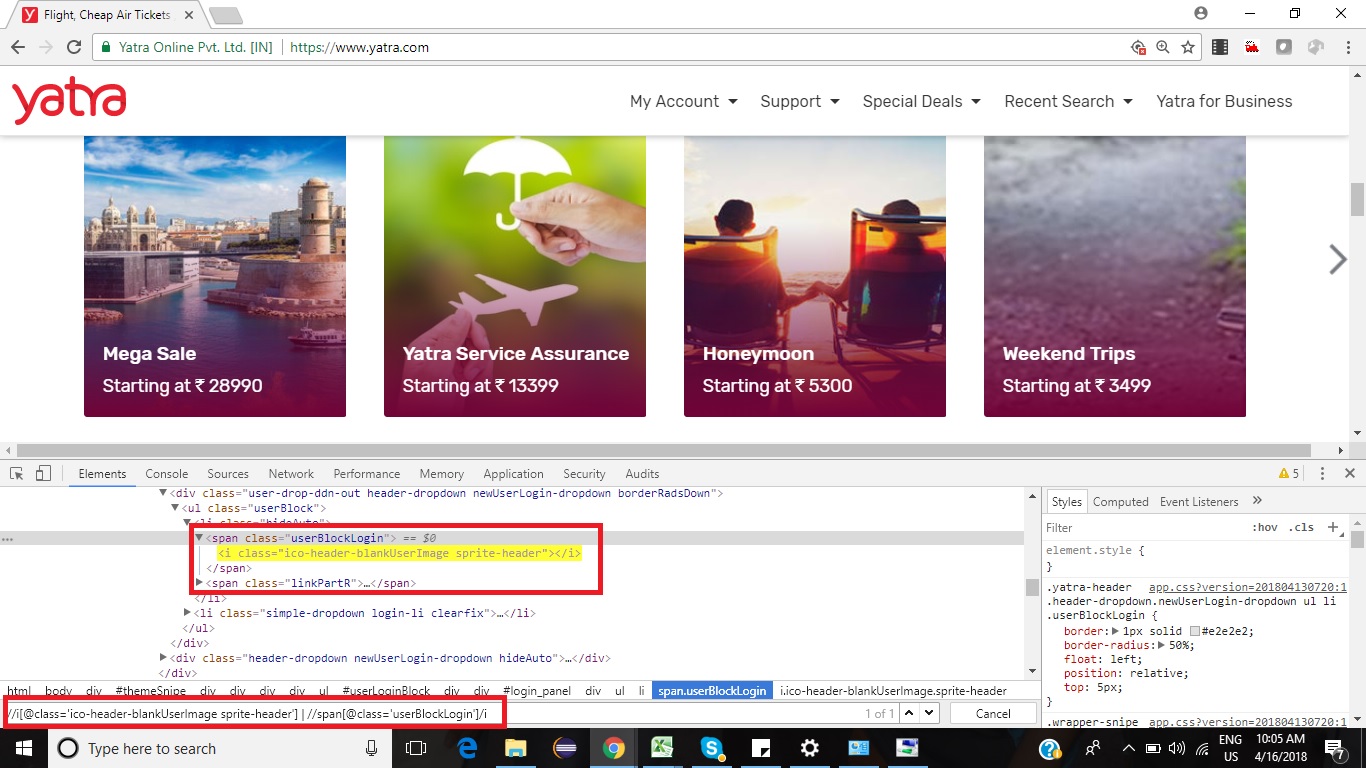
Combined Xpath: //i[@class=’ico-header-blankUserImage sprite-header’] | //span[@class=’userBlockLogin’]/i
In code you need to use as below:
driver.findElement(“//i[@class=’ico-header-blankUserImage sprite-header’] | //span[@class=’userBlockLogin’]/i”);
You need to keep all xpath in single doubt quotes in stead of separate double quotes for each xpath.
Eg:
driver.findElement(“//i[@class=’ico-header-blankUserImage sprite-header’]” | “//span[@class=’userBlockLogin’]/i”);
Above syntax is incorrect.
You need to use above concept with Page object model as below:
@FindBy(xpath=”//i[@class=’ico-header-blankUserImage sprite-header’] | //span[@class=’userBlockLogin’]/i”)
WebElement someElementName;
Locating a web element using multiple css selectors:
Suppose a web element has 3 different types of unique cssevery time: Locator 1 , Locator 2, Locator 3.
In stead of using try catch block, use below combined xpaths using comma separator (‘,’):
by.css(“Locator 1 , Locator 2 , Locator 3”)
Syntax: driver.findElement (by.css(“Locator 1 , Locator 2 , Locator 3”));
It will try to locate web element by all three locators and you know it will be located surely at least by one locator. If more than one xpaths locate element, it will combined and return unique element.
Above concept can be used in other scenarios as well. For example: You need to find all text boxes, buttons and links. In stead of using findElements three times for each locators, you can combine in one and store in a List as below:
List = driver.findElements(by.css(“Locator for all text boxes , Locator for all buttons , Locators for all links”));
Let’s try an example:
I don’t have any dynamic web element but I will try to locate an element using two different css selectors as below:
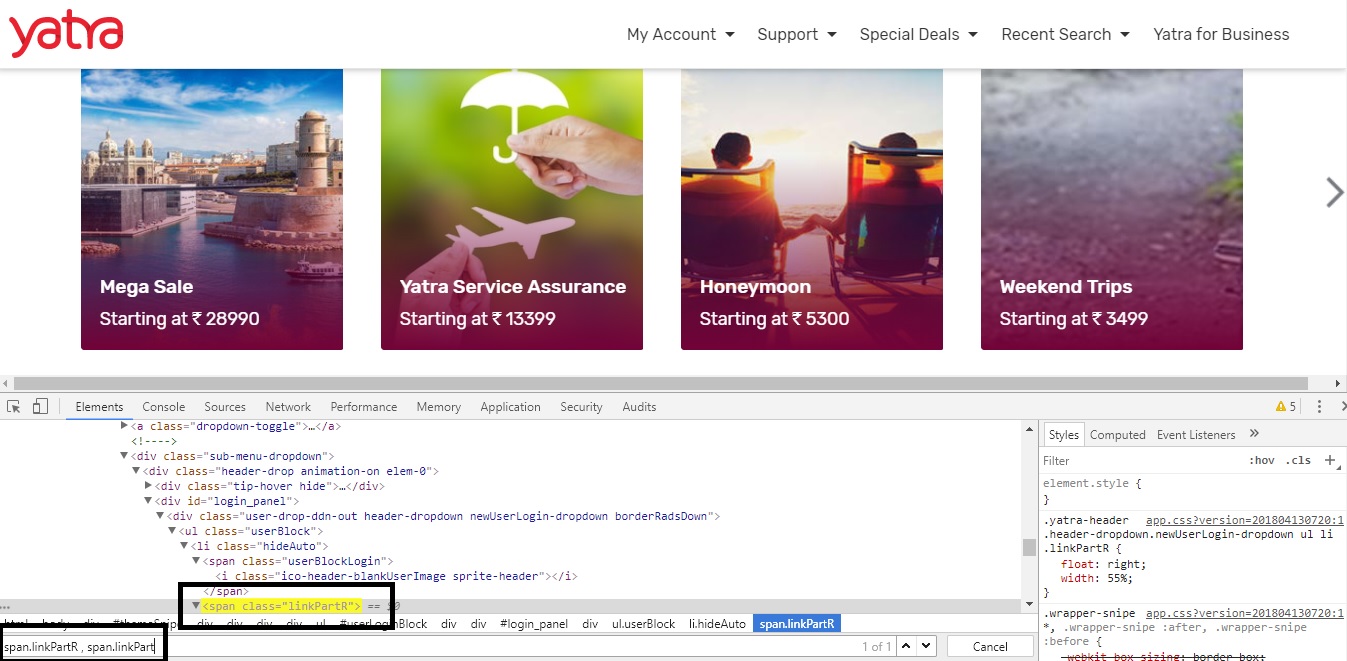
So, if you want to combine multiple xpaths use pipe symbol and to combine css use comma separator. This concept is not applicable for other locator strategies like id, classname etc. But remember you can not mix locator strategies. For ex: Xpath and css in same expression. Reason is very simple as you need to say webdriver which strategy you want to use. It can be either one not mixture.
I hope, you must have learnt something new from this post.
If you have any doubt, feel free to comment below. If you like my posts, please like, comment, share and subscribe. #ThanksForReading
#HappySelenium