Have you used “Duplicate a tab in browser” feature? Do not worry if it is something new to you, let me start from basics.
You love shopping online on an E-Commerce site. Suppose you have navigated as Dresses – > Men -> Formal -> Bottoms -> Top Rated and so on. Now you need to go to different section from “Bottoms” and you need currently loaded section as well. We have three options to do so :-
- Start from beginning in a new tab. – You will create new browsing history and takes time.
- Copy current URL and open in a new tab – New tab looses browsing history.
- Duplicate current tab – Duplicated tab retains Browsing history.
So duplicating a tab is better option.
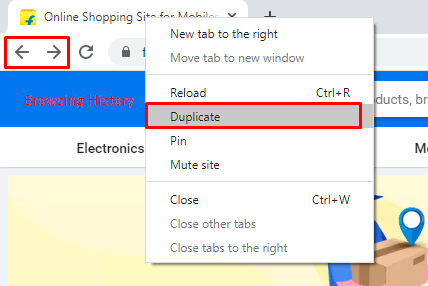
Every browser provides an option to duplicate a tab in a browser. If you take example of Chrome browse then you just need to right click on tab which you want to duplicate and select “Duplicate” option as shown below:-
Note :- I have launched Facebook, Google then Flipkart’s URL to generate browsing history. You can open any URL.
Once you click on Duplicate option, a duplicate tab opens with history.
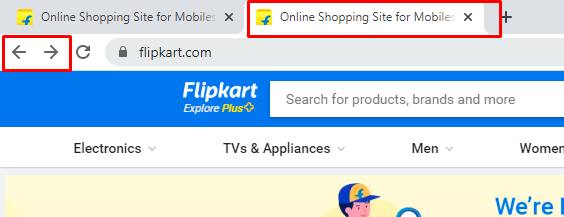
Please note Back and Forward arrow are enabled which means that there are browsing history.
There is a shortcut key ALT+D+ENTER to duplicate tab but it does not retain history. It is similar to second option discussed above.
If we want to open a duplicate tab with browsing history then we need to install a chrome extension “Duplicate tab shortcut“.
Either you can search and add this extension in Chrome Web Store or directly open this URL.

When you add above extension to chrome then you see a icon at top right corner as in above image. Now you got a new shortcut key as ALT+SHIFT+D in Windows and OPTION+SHIFT+D in Mac to duplicate a tab with browsing history. Try it.
We may need to duplicate a tab in automated scripts. For an example :- You need to do some setup at Settings page. To navigate to setting page flow is as Home Page -> Login -> Dashboard -> Profile -> Settings. Now you need to go back to Home page then come back to Setting page again.
If you do exactly what same steps described above then it will take more execution time. But if you duplicate tab when you are done setup at setting page then it will save execution time and extra navigation. Switch to duplicated tab and there you can go to home page and do required setup there. Now switch to first tab and continue from Settings page.
You must have faced many scenarios where you may need to duplicate a tab during manual testing. It is also helpful in maintaining session. Let’s learn how can we achieve duplicate tab functionality in Chrome using Selenium WebDriver.
We know by default Selenium WebDriver launches a fresh browser i.e without any extensions and plugins. We use ChromeOptions class to add an extension in Chrome browser. ChromeOptions class provides a method addExtensions which accepts a File input which is basically extension file depending on browser. A file with .crx extension is a Chrome Extension file used to extend the functionality of the Google Chrome web browser.
The easiest way to download a CRX file of any chrome extension is using Get CRX chrome extension. Add it to your chrome browser and you will see a icon at top right corner of browser.

Now open Duplicate Tab Shortcut extension URL and select option as shown below:-

It will download a .crx file for Duplicate Tab Shortcut extension.
Downloaded CRX file path we need to pass in ChromeOptions. Let’s see a complete program below :-
package SpecialConcepts;

import java.awt.AWTException;
import java.awt.Robot;
import java.awt.event.KeyEvent;
import java.io.File;
import java.time.Duration;

import org.openqa.selenium.WebDriver;
import org.openqa.selenium.chrome.ChromeDriver;
import org.openqa.selenium.chrome.ChromeOptions;
import org.openqa.selenium.support.ui.ExpectedConditions;
import org.openqa.selenium.support.ui.WebDriverWait;
import org.testng.annotations.Test;

import io.github.bonigarcia.wdm.WebDriverManager;

public class DuplicateTabWithHistory {

        @Test
        public void doActions() throws AWTException, InterruptedException {
                // Setup browser
                WebDriverManager.chromedriver().setup();
                // Adding .crx file
                ChromeOptions chromeOptions = new ChromeOptions();
                String fileURL = System.getProperty("user.dir");
                chromeOptions.addExtensions(new File(fileURL + "/src/test/resources/extensions/Duplicate Tab Shortcut.crx"));
                WebDriver driver = new ChromeDriver(chromeOptions);

                // Loading some URLs
                driver.get("http://automationpractice.com/index.php?controller=authentication&back=my-account");
                driver.get("http://google.com/");
                driver.get("http://facebook.com/");

                // One Way
                /*
                 * Actions action_chains = new Actions(driver);
                 * action_chains.keyDown(Keys.ALT).keyDown(Keys.SHIFT).sendKeys("d").build().
                 * perform(); action_chains.keyUp(Keys.ALT).keyUp(Keys.SHIFT).build().perform();
                 */

                // Another way - Press ALT + SHIFT + D
                Robot r = new Robot();
                r.keyPress(KeyEvent.VK_ALT);
                r.keyPress(KeyEvent.VK_SHIFT);
                r.keyPress(KeyEvent.VK_D);
                r.keyRelease(KeyEvent.VK_D);
                r.keyRelease(KeyEvent.VK_SHIFT);
                r.keyRelease(KeyEvent.VK_ALT);

                // Wait till another duplicate is opened
                new WebDriverWait(driver, Duration.ofSeconds(10)).until(ExpectedConditions.numberOfWindowsToBe(2));

                // Let's Switch to new tab and navigate back and forward
                driver.switchTo().window(driver.getWindowHandles().stream().skip(1).findFirst().get());

                // Verifying history is retained
                driver.navigate().back();
                new WebDriverWait(driver, Duration.ofSeconds(10)).until(ExpectedConditions.titleIs("Google"));
                System.out.println("Title is : "+ driver.getTitle());
                driver.navigate().back();
                new WebDriverWait(driver, Duration.ofSeconds(10)).until(ExpectedConditions.titleIs("Login - My Store"));
                System.out.println("Title is : "+ driver.getTitle());

                // Loading a new URL
                driver.get("http://www.makeseleniumeasy.com");
                System.out.println("Title is : "+ driver.getTitle());

                driver.quit();

        }

}
Output :-
Title is : Google
Title is : Login - My Store
Title is : Make Selenium Easy
You can download/clone above sample project from here.
If you have any doubt, feel free to comment below.If you like my posts, please like, comment, share and subscribe.#ThanksForReading
#HappyLearning