Hello Folks,
We have seen basic of Frames/IFrames in last post.
Before I start “Handling of frames in selenium”, I want to give a scenario which will help us in this topic.
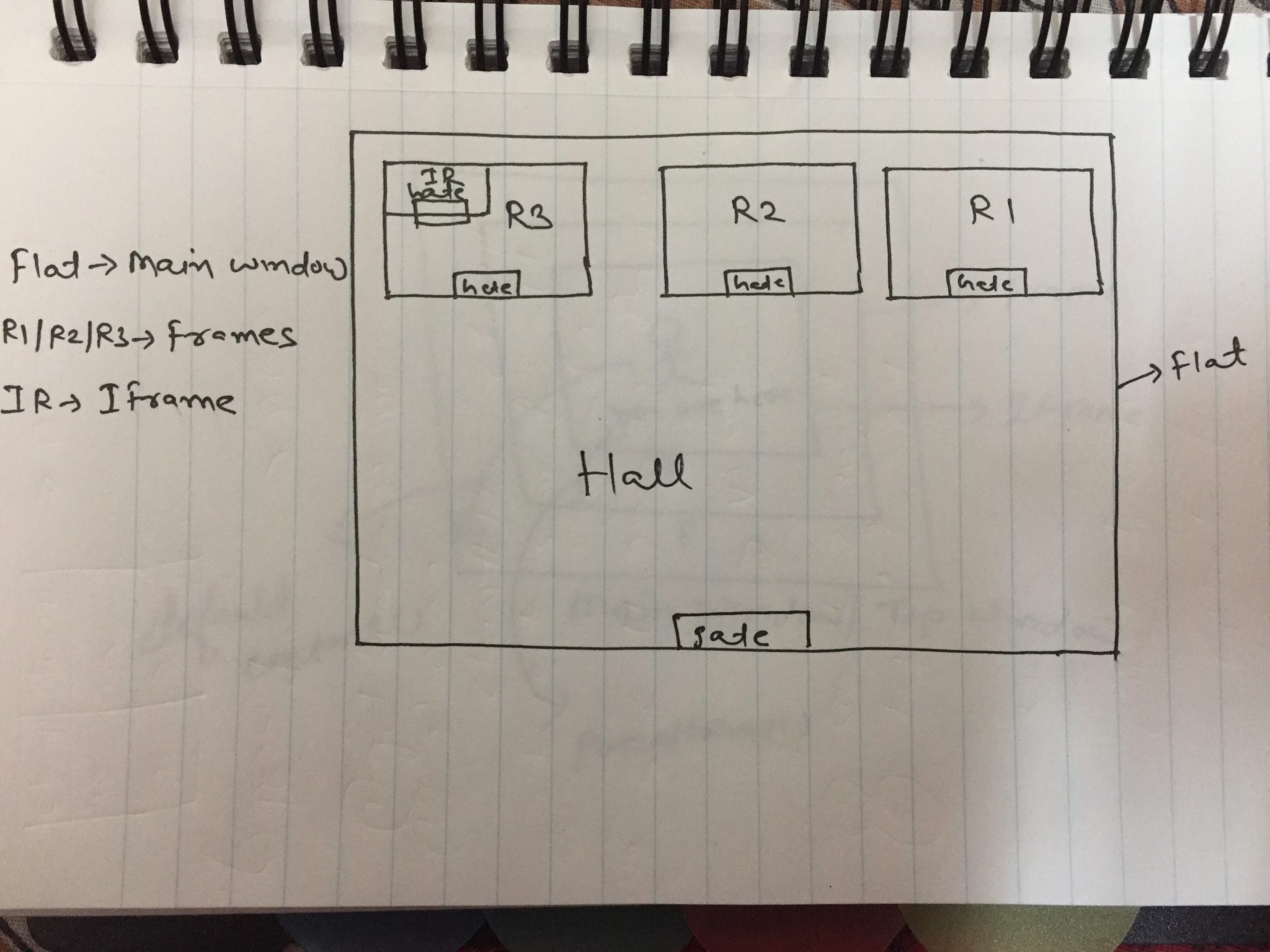
Suppose there is a flat of 3 rooms. You can go to any room through hall. Each rooms are not inter connected means you can not go room to room directly.
- To enter in Room 1, you need to enter via Room 1 gate.
- To enter in Room 2, you need to enter via Room 2 gate.
- To enter in Room 3, you need to enter via Room 3 gate.
- If you are in Room 1 and want to go in Room 2, you need to come out from Room 1 and then need to enter in Room 2 via its own gate.
- Room 3 has another room say Inner Room which is inside Room 3. To go to Inner Room of Room 3, you need to first enter Room 3 through its own gate and then you need to go to Inner Room of it.
- If you are in Inner Room of Room 3 and want to go to Room 1, First you need to get out from Inner room so that you will be in Room 3. Again you need to go out from Room 3 and enter to Room 1 through its own gate.
The same logic will be used in selenium webdriver to switch to frames.
How to Switch to frame/Iframe?
Although there are differences between Frames and Iframes but selenium webdriver handle both in same way. We know that if we need to perform any action on a web element present inside any frame/iframe, we need to switch to it.
We can switch to frame/iframe using four ways:
- Switch to frame/iframe using its id.
- Switch to frame/iframe using its name.
- Switch to frame/iframe using its index.
- Switch to frame/iframe using its web element.
Switch to frame/iframe using its id/name:
Consider below html code:
#iframeCode
#FrameCode
Above fram/iframe codes have id and name. Using id and name we can switch to respective frame/iframe.
Syntax:
WebDriver driver= driver.switchTo().frame(String id);
OR
WebDriver driver= driver.switchTo().frame(String name);
Above statement returns driver focused on the given frame.
Note: Syntax is same for both frame and iframe.
Example:
Switch frame:
driver.switchTo().frame(“TopId”);
driver.switchTo().frame(“top”);
Swicth Iframe:
driver.switchTo().frame(“InnerFrameID”);
driver.switchTo().frame(“InnerFramename”);
2. Switch to frame/iframe using its index:
- We can switch to frame/iframe using its index which is zero based.
- Index is the position of appearance of frame/iframe in DOM.
- We need to be careful while finding index of any frame/iframe.
- You can consider the same indexing as we do in xpath.
- Selecting a frame by index is equivalent to the JS expression window.frames[index] where “window” is the DOM window represented by the current context. Once the frame has been selected, all subsequent calls on the WebDriver interface are made to that frame.
- This way you should use when none of other ways worked.
Syntax:
WebDriver driver= driver.switchTo().frame(int frameIndex);
Above statement returns driver focused on the given frame.
Note: Syntax is same for both frame and iframe.
Example:
driver.switchTo().frame(0);
3. Switch to frame/iframe using its web element:
We can switch to frame/iframe by locating it though locators.
Note: Many people understand that we need to locate any web element which is inside desired frame/iframe and then we can switch to frame using that web element. This is not true. We need to pass frame/iframe web element not any web element which is inside frame/iframe.
Syntax:
WebDriver driver= driver.switchTo().frame(WebElement frameElement);
Example:
driver.switchTo().frame(driver.findElement(By.xpath(“//iframe[@id=’InnerFrameID’]”)));
or
driver.switchTo().frame(driver.findElement(By.id(“InnerFrameID”));
Above statement returns driver focused on the given frame.
Note: Syntax is same for both frame and iframe.
Switching back to parent frame or default content:
When we are inside a frame/iframe and want to go to other frame or go out of frame, we need to use two methods based on requirement. We can not use swicthTo().frame() way to switch back.
- defaultContent() method
- parentFrame() method
defaultContent():
- It selects either the first frame on the page, or the main document when a page contains iframes.
- It returns driver focused on the parent frame.
Syntax: WebDriver driver= driver.switchTo().defaultContent();
parentFrame():
- It change focus to the parent context. If the current context is the top level browsing context, the context remains unchanged.
- It returns driver focused on the parent frame.
Syntax: WebDriver driver= driver.switchTo().parentFrame();
Many people confuse with above methods so I will take a pictorial example to explain:
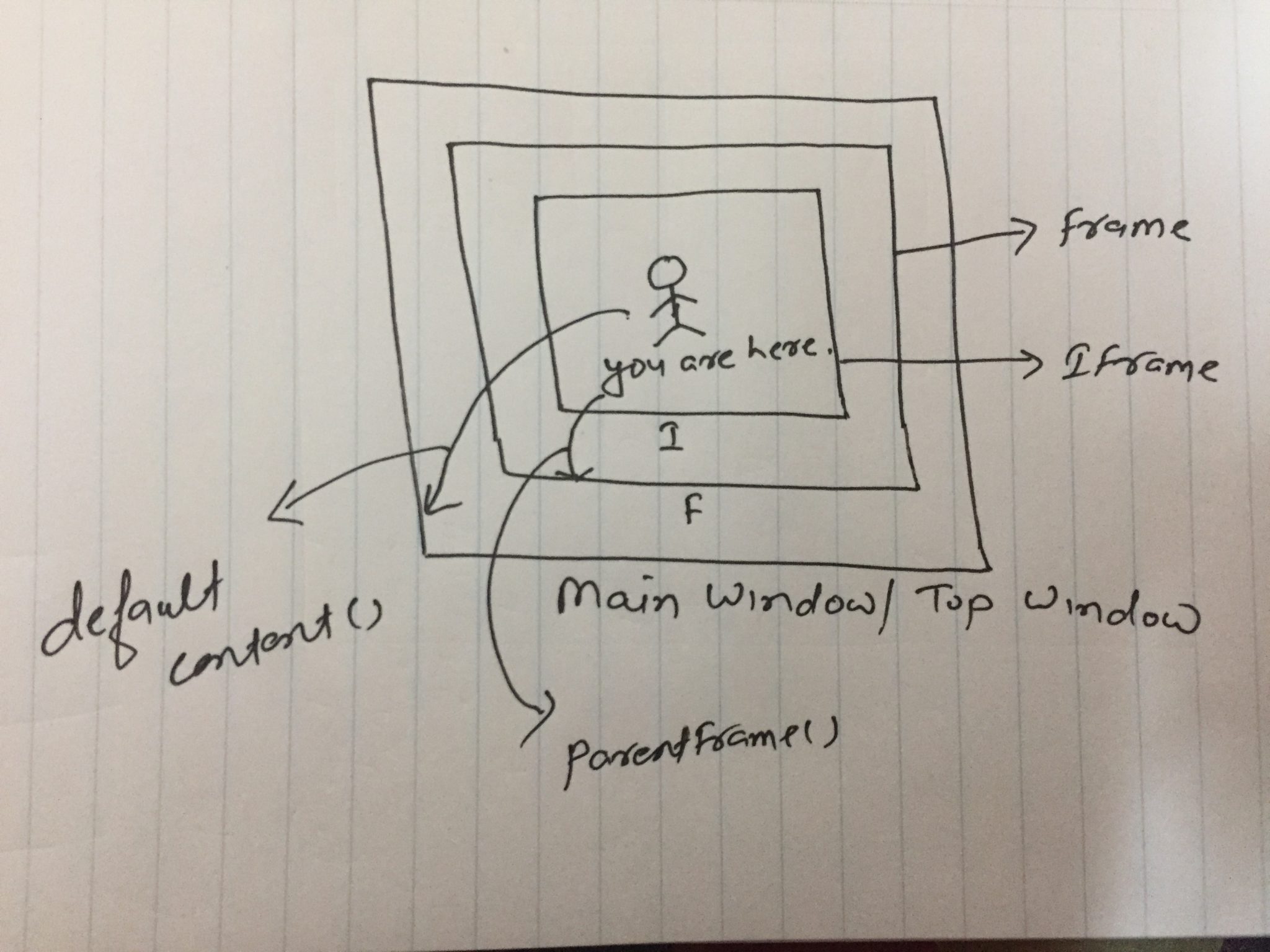
I hope above image will clear your doubt.
We will continue the same topic in next post.
If you have any doubt, feel free to ask.
If you like my posts, please like, comment, share and subscribe.
#ThanksForReading
#HappySelenium