As a part of GIT Tutorials End To End, we will learn about another frequently used and important git command “git add“ in this post.
We have seen the usage of “git add” command in the previous post without understanding much about it. Let’s know more about this command in this post.
Did you know that I have started a YouTube channel as well and I need your support to make it successful. Please do watch content then comment, like, share, and obviously subscribe.
We are already familiar with the working directory. A working directory is a local copy of your repo where you can add a new file or make changes to any existing files to the repo. These changes will not be directly visible to other developers of the repository as we have not saved or committed and pushed those changes. Before we commit changes we must need to add them from the working directory to the Staging area.
As per Atlassian git add is the first command in a chain of operations that directs Git to “save” a snapshot of the current project state, into the commit history.
The staging area is new terminology for us now. The Staging area is a rough draft space where we can use the “git add” command to add a newer version of file/s. It included addition/deletion/modififcation of files. Changes added in the staging area will be committed and can be pushed to the repository. We can always remove or modify already added files in the staging area. Let’s see functionlity of the “git add” command in actions.
- Create an empty directory.
- Right-click and click on Git Bash Here.
- Type a git command as “git init“.
- Type “git status” command.
- Create a new file.
- Type “git status” command.
- Type “git add ” command.
- Type “git status” command.

Please observe here that when we make changes in repo i.e. we created/added a new file. It is saying that the newly created file is an untracked file since it is not yet tracked by GIT. It is showing a suggestion to use the “git add” command with the file name so that it can be included as a part of the next commit. Let’s follow the suggestion.

When we ran the “git add” command then changes from the working directory were copied (not moved) to the staging area. Remember if we have linked local repo to remote repo then this new file will not be present in remote repo till we commit and push. So in the short staging area is in you local only. It is something like a staging area as a level up of working directory where we have some confirmed changes to be committed.
Let’s perform some more steps:-
- Add some lines to the newly created file.
- Run the “git status” command.
- Run the “git add” command.
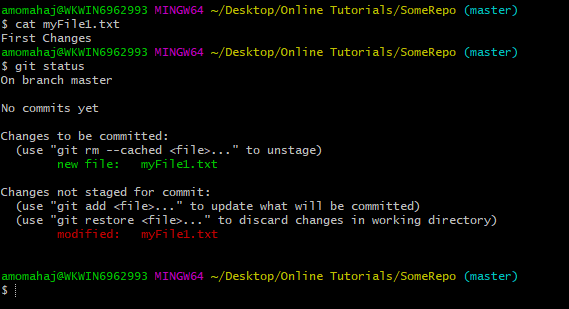
Now “git status” command shows two sections:-
- Changes to be committed i.e whatever we have added previously above. At that stage file was empty.
- Changes not staged for commit i.e when we add some data into a file that is not yet in the staging area.
Kindly note that when we added some contnet in the file then git is not showing that as untracked file anymore. File is being tracked by git now already and it shows changes to file which is not staged for commit.
We can also see the difference between the working directory and staging area. As of now, we have only one file “myFile1.txt“. We have already staged or added an empty “myFile1.txt” to the staging area. We have modified or added a line in “myFile1.txt” in working directory which is not part of the staging area as of now. If we would like to see the difference between these two i.e. versions of “myFile1.txt” in staging area and working directory then we can use another git command “git diff“.
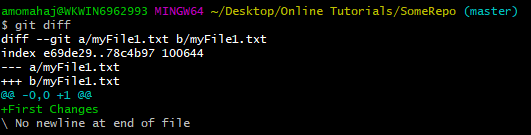
Output format we will see in a different post but you can see “+First Changes” in output which is actually differences between versions.
Run command “git add ” followed by “git status“.

As of now we were adding single file to staging area at a time. We can add multiple files together as well. We can pass multiple file names seperate by white space as shown below.

If we have multiple files then typing name of all files with paths is not a feasiable idea. We can use “git add .” and “git add -A” commands. Difference between these two commands is that “git add .” will not add files from higher directories i.e. it will add files from currently selected directory only.

The “git add” command does not take only file names as parameter but also pass directory name/s. When we use directory name then all created and modifies files will be added to staging area.
I have created two directries with one file in each. We can use “ls *” command to list all files inclung files in sub directories.


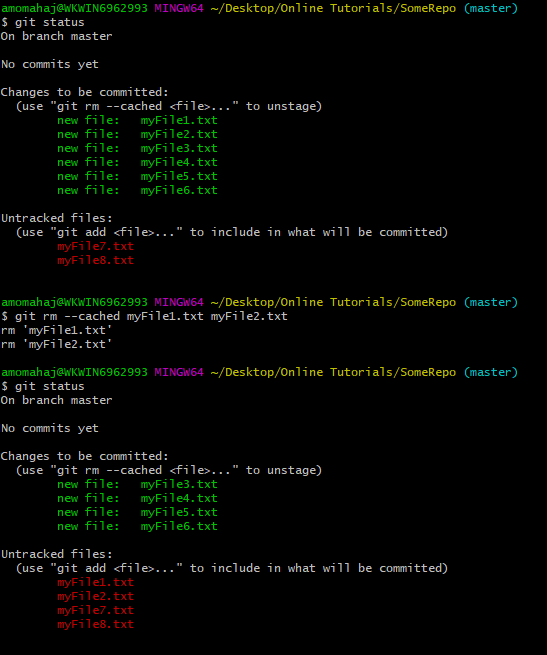
We can always unstage file if required. We need to use “git rm –cached ” to unstage a file/s. The “cached” option specifies that the removal should happen only on the staging index. Working directory files will be left alone.
Please subscribe to my YouTube channel Retarget Common to learn from my video tutorials.
Below are important end to end tutorials for Testers:-
Selenium Tutorials
Rest Assured Tutorials
Postman Tutorials
TestNG Tutorials
If you have any doubt, feel free to comment below.If you like my posts, please like, comment, share and subscribe.#ThanksForReading
#HappyLearning