As a part of GIT Tutorials End To End, we will learn to revert changes in a file using Git checkout and Git restore commands.
I will expect that you are aware of the basic concepts and commands of GIT. But if you are a beginner in GIT then I strongly recommend you to refer GIT Basic Commands and Concepts section on my blog first.
Did you know that I have started a YouTube channel as well and I need your support to make it successful. Please do watch content then comment, like, share, and obviously subscribe.
We will use an existing public repository which we can clone from here. If you are not aware of cloning a repo then you can learn it from here – Git Clone – Get Local Copy Of Remote Repository

I have cloned the example repo below. We have a single commit now.

Let’s modify an existing file available at path src/test/java/basicstest/HelloSelenium.java. In Git bash, we can open a file in the editor using the”nano ” command as shown below-

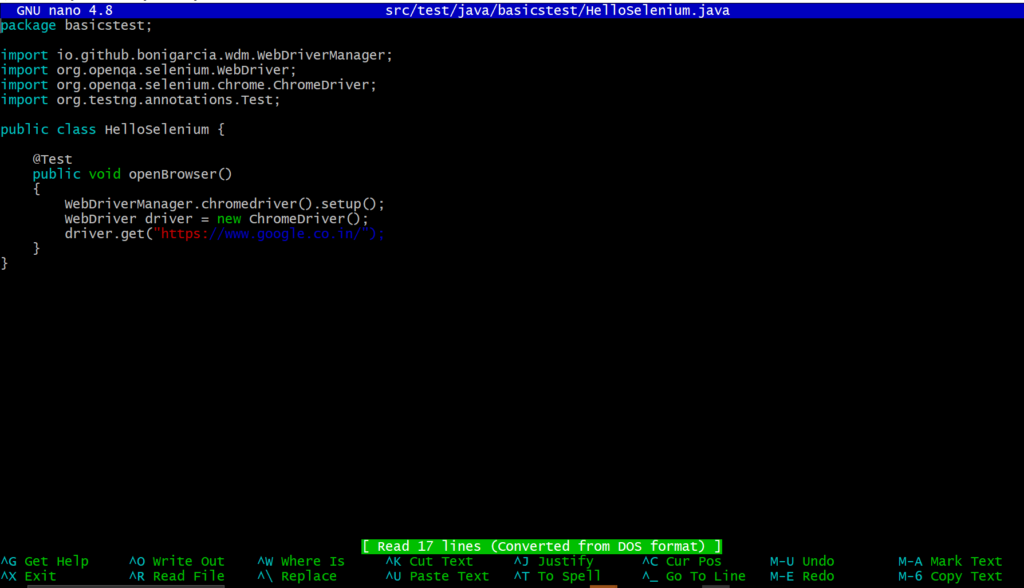
You can easily edit the file. Use the arrow keys to navigate and type as usual. I added a new line as below –

Click on Ctrl+X and press “Y” to save changes. Run the git status command to see if the file is shown as modified.

Now for some reason, you want to revert all changes done by you in the file. Here we have just added a line but in real-time you may have multiple changes. We have two ways to do so.
Use git checkout to revert all changes.

Use git restore to revert all changes.

Note – The git checkout command is also used to switch branches and commits and now we saw another usage of the git checkout command. It might confuse people easily. So we have a new command called git restore command.
In the above example, changes were not committed. Let’s do some changes and commit. Repeat it twice.


I added System.out.printLn(“added new line1”); in commit id ed7ee81 (added line 1) and added System.out.printLn(“added new line2”); in commit id 2524ba (added line 2). We don’t have any uncommitted changes now.
Now if we try to revert all changes in the same way as we did above then it will not work. Actually, git restore and git checkout commands will remove all changes made after the last commit by default or in simple words, the file will be restored as per the last commit. Now we need to say explicitly to git checkout command to revert changes for a commit. As the git restore command is new and under experiment, we don’t have the option to pass commit id.
git checkout
I would like to revert the changes in the file for the last commit. So I need to pass the (last-1) commit id I will run the command as below:-


If you want to revert all changes then you can pass the commit id of the remote repo or where origin/HEAD is currently pointing.

You can see above how we reverted all changes. If commits are pushed to remote then also you can revert changes in a file using the above way.
If you have any doubt, feel free to comment below.
If you like my posts, please like, comment, share and subscribe to my YouTube channel.
#ThanksForReading
#HappyLearning