As a part of GIT Tutorials End To End, we will learn about the Git Clean command in this post.
I will expect that you are aware of the basic concepts and commands of GIT. But if you are a beginner in GIT then I strongly recommend you to refer GIT Basic Commands and Concepts section on my blog first.
Did you know that I have started a YouTube channel as well and I need your support to make it successful. Please do watch content then comment, like, share, and obviously subscribe.
You must go through Untracked File Vs Unstaged File to understand it much better.
Git clean command to delete untracked files and directories from the working tree or local repository. Please note that an Untracked file is a file not tracked by GIT.
Let’s create a git repository and add some files.
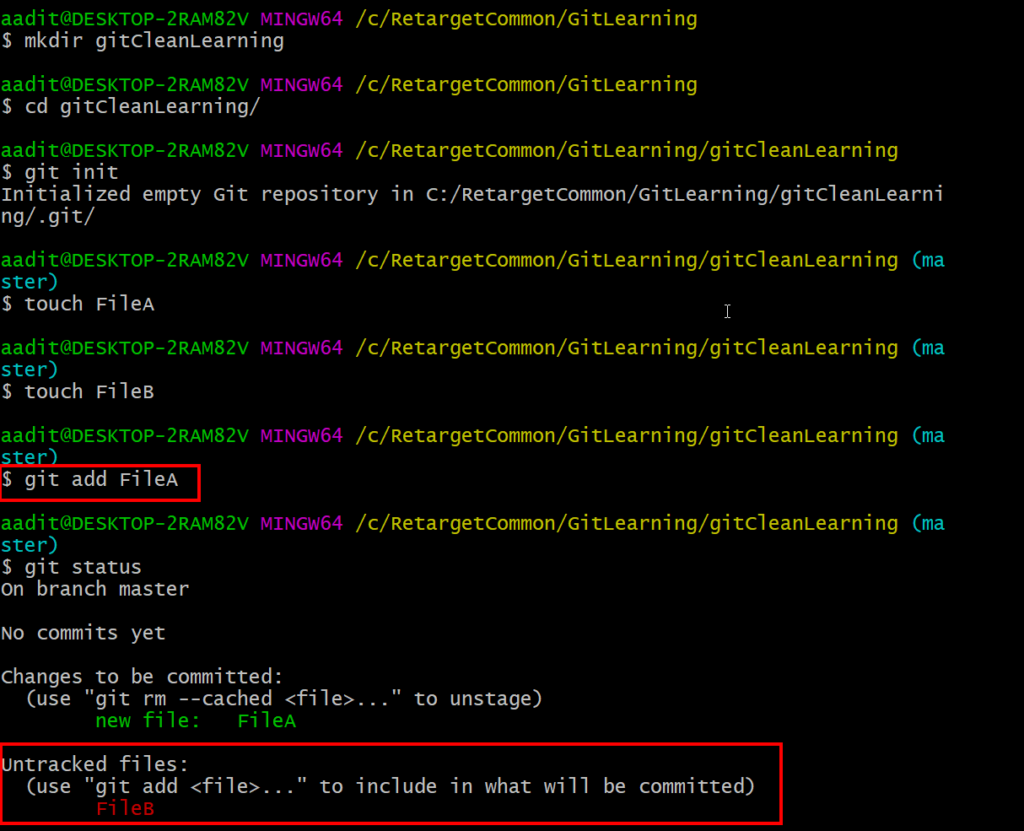
I have created two files “FileA” and “FileB“. I have added only “FileA” in the staging area and “FileB” remains an untracked file. At some point, you may feel the FileB is no longer needed. Obviously, you can delete it using the “rm” command or using the file directory but the git clean command will be helpful if you have more files to be deleted and to identify untracked files.
Git clean provides an option for a dry run i.e. it will list the untracked files that would be removed.

Let’s see how git clean behaves when we have subdirectories.

I have created a directory configFiles, switched to it and created two files “FileC” and FileD“. I added only FileD in the staging area. So, we have two untracked files – FileB in the main directory i.e. gitCleanLearning and FileC in the subdirectory i.e. configFiles. If we run the git clean dry run command in the subdirectory then it will list only untracked files of the subdirectory. If we run the dry run command from main directory then it will list all untracked files from subdirectories as well.

It does not list untracked directories by default. To list it we need to pass “d” as git clean -nd.

It is always good to do a dry run shown above before deleting files. We need to use the git clean -f command to delete untracked files. We need to use -f as Git just wants you to confirm your operation. However, you can set the value of the config variable clean.requireForce to override this behaviour.


Again by default untracked directories will not be deleted. We need to use git clean -fd command shown above to delete untracked directories as well.
A .gitignore file is a text file that lists all the files, directories and subdirectories to be ignored by git. By default, the git clean command will not touch files and directories listed in the .gitignore file.


I have created a file FileIgnore and added it to the .gitignore file. Git clean dry run command will not list FileIgnore although it is as good as an untracked file. To list untracked/ignored files we need to use the git clean -xn command.

And to delete use git clean -xf.

The command is git clean -xdf.

- The git clean command to delete untracked files and directories from the working tree or local repository.
- An Untracked file is a file not tracked by GIT.
- Use git clean -n command to see list of untracked files to be deleted.
- Use git clean -dn command to see list of untracked files along with untracked directories to be deleted.
- Use git clean -xn command to see list of untracked files and ignored files to be deleted.
- Use git clean -dxn command to see list of untracked files,ignored files along with untracked directories to be deleted.
- Use git clean -f command to remove all untracked files.
- Use git clean -df command to remove all untracked files along with untracked directories.
- Use git clean -xf command to remove all untracked files and ignored files.
- Use git clean -xdf command to remove all untracked files,ignored files along with untracked directories.
If you have any doubt, feel free to comment below.
If you like my posts, please like, comment, share and subscribe to my YouTube channel.
#ThanksForReading
#HappyLearning