We have seen Introduction of Apache POI. In this post, we will see how can we read an excel file using Apache POI library.
Earlier, Apache POI used to provide different classes to read/write .xls and .xlsx excel sheets.
- Class HSSFWorkbook – For xls
- Class XSSFWorkbook – For xlsx
But now Apache POI provides a package which supports both type of excel files. Just we need to pass actual extension of excel file. As per official document of Apache POI:-
HSSF is our port of the Microsoft Excel 97 (-2003) file format (BIFF8) to pure Java. XSSF is our port of the Microsoft Excel XML (2007+) file format (OOXML) to pure Java. SS is a package that provides common support for both formats with a common API. They both support read and write capability.
You don’t need to use different classes based on excel type. SS package of Apache POI provides a class named “WorkbookFactory“. This class is for creating the appropriate kind of Workbook be it HSSFWorkbook or XSSFWorkbook by auto-detecting from the supplied input.
WorkbookFactory has a static method named “create(File file)” which creates the appropriate HSSFWorkbook / XSSFWorkbook from the given File, which must exist and be readable.
So, let’s learn the whole program now:-
We don’t need to put all Apache POI libraries in our project., If we need to use with excel, we need only POI-Core and POI-ooxml libraries. I will suggest you to use Maven as it will download all required transitive dependencies as well.
I have added below dependencies in pom.xml as per latest available version. Always use latest versions. You can find that in Maven Central Repo.
org.apache.poi poi-ooxml 4.1.2 org.apache.poi poi 4.1.2
First create an excel sheet as below and keep in resource folder:-

You can see it is a .xlsx file. Let’s familiar with basic excel terminologies. Below image should give you a better idea.
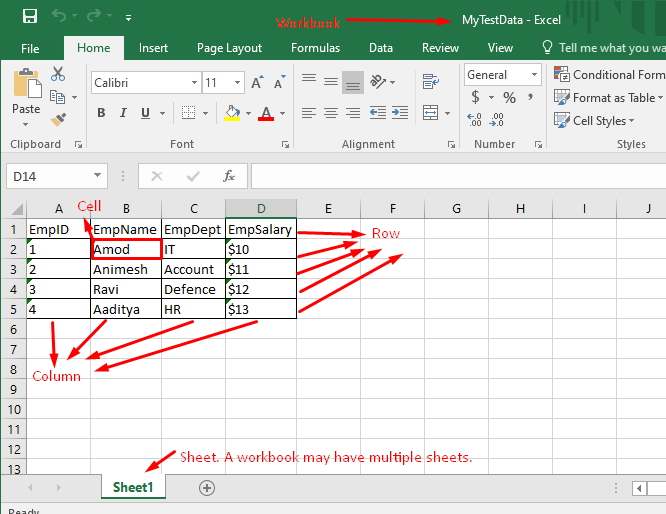
Every cell can be represented uniquely using ( rowNo, ColNo). Row and Column index starts from zero. If I say a cell which represented as (0,0), it means I need to go first row then first column. “EmpID” will be cell value as per above excel. Below is pictorial representation: –

Let’s see now detailed Java Code. I will print all data of excel one by one:-
package ReadExcel;

import java.io.File;
import java.io.IOException;

import org.apache.poi.EncryptedDocumentException;
import org.apache.poi.ss.usermodel.Cell;
import org.apache.poi.ss.usermodel.Row;
import org.apache.poi.ss.usermodel.Sheet;
import org.apache.poi.ss.usermodel.Workbook;
import org.apache.poi.ss.usermodel.WorkbookFactory;

public class ReadExcelUsingWorkbookFactory {

        public static void main(String[] args) throws EncryptedDocumentException, IOException {

                /*
                 * It Creates the appropriate HSSFWorkbook / XSSFWorkbook from the given File,
                 * which must exist and be readable. In this case it will create a XSSFWorkbook
                 */
                Workbook wb = WorkbookFactory.create(new File("src\\test\\resources\\excelFiles\\MyTestData.xlsx"));
                // Get sheet with the given name "Sheet1"
                Sheet s = wb.getSheet("Sheet1");
                // Returns the number of physically defined rows (NOT the number of rows in the
                // sheet)
                int rowCount = s.getPhysicalNumberOfRows();
                System.out.println("total rows in sheet is : " + rowCount);
                // Iterating rows
                for (int i = 0; i < rowCount; i++) {
                        // Returns the logical row (not physical) 0-based. If you ask for a row that is
                        // not defined you get a null.
                        Row r = s.getRow(i);
                        // Gets the number of defined cells (NOT number of cells in the actual
                        // row!).That is to say if only columns 0,4,5 have values then there would be 3
                        int columnCount = r.getPhysicalNumberOfCells();
                        // Iterating columns
                        for (int j = 0; j < columnCount; j++) {
                                Cell c = r.getCell(j);
                                /*
                                 * Get the value of the cell as a string For numeric cells we throw an
                                 * exception. For blank cells we return an empty string.For formulaCells that
                                 * are not string Formulas, we throw an exception.
                                 */
                                String data = c.getStringCellValue();
                                System.out.print(data + "\t");
                        }
                        System.out.println();
                }

        }
}
Output:-

You can download/clone above sample project from here.
If you have any doubt, feel free to comment below.If you like my posts, please like, comment, share and subscribe.#ThanksForReading
#HappyLearning