Skip to content

Make Selenium Easy

And Keep It That Way

  • Home
  • Share
  • Toggle search form

Handling Frames/IFrames In Selenium WebDriver : Part 3

Posted on 02/19/2025 By admin

Hello Folks,

This will be last part of “Handling frames in selenium webdriver”.

We know what is frame and how to handle it in selenium webdriver. But I have seen many queries where people is not able to find whether web element is in frame or not. We will see ways of finding if web element is in frame or not in Firefox and chrome browsers.

In Chrome:

Way 1: 

Steps to find:

  1. Right click on web element and click on “Inspect”.
  2. Go to “Elements” tab and see last row (Node structure) as shown in below pic:

3. The highlighted row displays all ancestor nodes with their ID and class attribute values using CSS selector. If you find any frame/iframe node before your desired web element, you can conclude your web element is inside an frame/iframe.

Way 2:

Steps to find:

  1. Mouse hover just near to web element and right click.
  2. If you see context option “View frame source” in context menu, you can conclude desired web element is in frame/iframe.

In Firefox:

Firefox browser provides very simple way of identifying if web element in in frame/iframe. Just right click and check context options in context menu. If you are able to find “This Frame” option in context menu, you can conclude web element is in iframe/frame.

I hope, you will be find if web element is in iframe/frame easily in both browsers.

Now we will see sample code with handling frames in selenium webdriver:

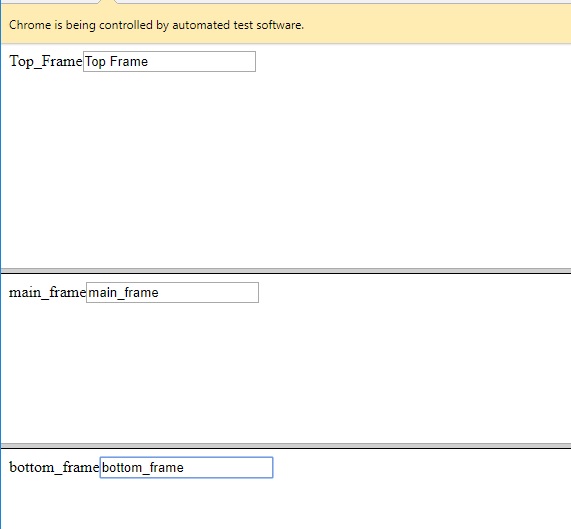
Test steps:

  1. Load MainWindow.htm in browser.
  2. Type “Top Frame” in TopFrame input box.
  3. Type “Main Frame” in mainFrame input box.
  4. Type “Bottom Frame” in bottomFrame input box.

Java code:

Output:
That’s all. I have covered almost all concepts of frame/iframe. If you have any doubt, feel free to comment below.

If you like my posts, please like, comment, share and subscribe.

#ThanksForReading

#HappySelenium

Uncategorized

Post navigation

Previous Post: Black Box Testing and White Box Testing : : Everything You Need To Know
Next Post: TestNG Tutorials 42: Parameters In TestNG or Parameterization of Methods in a TestNG Class

Related Posts

image – Make Selenium Easy Uncategorized
Understand Verification & Validation In Software Testing | Make Selenium Easy Uncategorized
Rūto – Get Started & Save Time in Finding Locators Uncategorized
Why syntax is driver.manage().window().maximize()? Uncategorized
FileUploadHtml – Make Selenium Easy Uncategorized
May 15, 2019 – Make Selenium Easy Uncategorized

Recent Posts

  • Getting Started with Selenium 4: What Is New and How to Upgrade from Selenium 3
  • Manual Testing
  • Baby Steps To Become Efficient Selenium-Java Automation Tester
  • Features of Selenium 4.0.0 Release – Java Binding
  • Part 1: Handling Drop-down Created Using SELECT Tag In Selenium

Recent Comments

No comments to show.

Archives

  • April 2026
  • April 2025
  • March 2025
  • February 2025
  • January 2025
  • December 2024
  • November 2024
  • October 2024
  • September 2024
  • August 2024
  • April 2024
  • March 2024
  • February 2024
  • December 2023
  • October 2023
  • August 2023
  • November 2022
  • September 2022
  • August 2022
  • July 2022
  • May 2022
  • March 2022
  • October 2021
  • April 2021
  • March 2021
  • January 2021
  • December 2020
  • October 2020
  • September 2020
  • August 2020
  • June 2020
  • May 2020
  • April 2020
  • March 2020
  • February 2020
  • January 2020
  • December 2019
  • November 2019
  • October 2019
  • September 2019
  • August 2019
  • May 2019
  • December 2018
  • November 2018
  • October 2018
  • September 2018
  • August 2018
  • July 2018
  • January 2018

Categories

  • Getting Started
  • Uncategorized

Copyright © 2026 Make Selenium Easy.

Powered by PressBook Masonry Dark